Team Settings
As a company owner, you have full control over who represents your company. After you log in, click on the hamburger menu at the top right, and click Team Settings
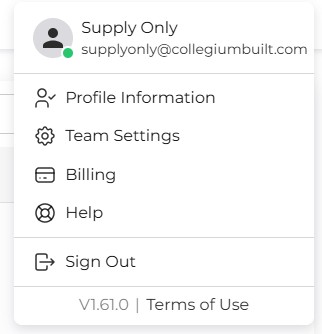
This will navigate you to the team settings page. Here you can edit your corporate details, and manage your team members access privileges.
Editing Your Corporations Details
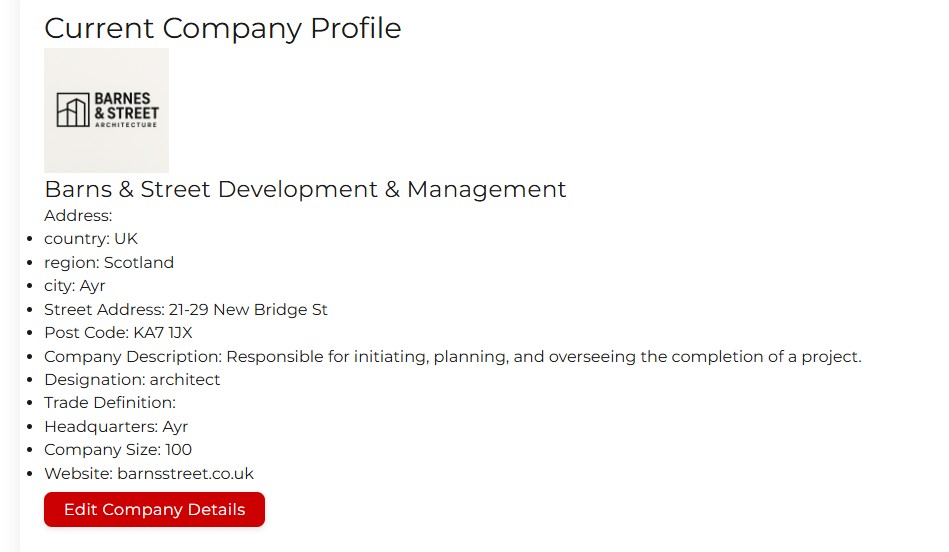
Clicking Edit Company Details opens a window letting you change your company information, and upload a new logo.
Page one in the new window lets you set up your company name, website, company designation (and trade definition is appropriate), edit your info blurb, and upload a new company logo.
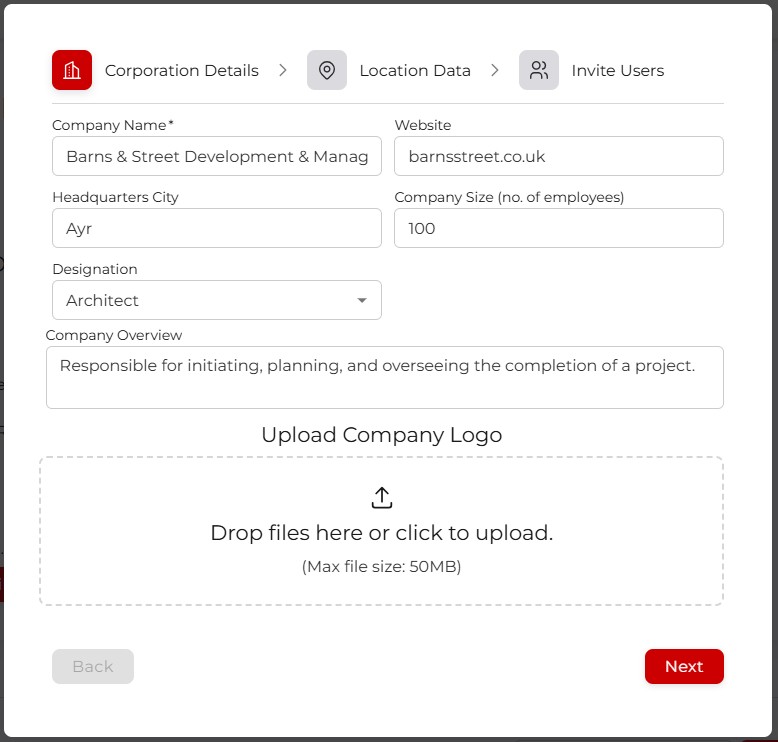
To upload a new logo, either click in the box and navigate to your image file, or simply drag it onto the box, and click confirm upload
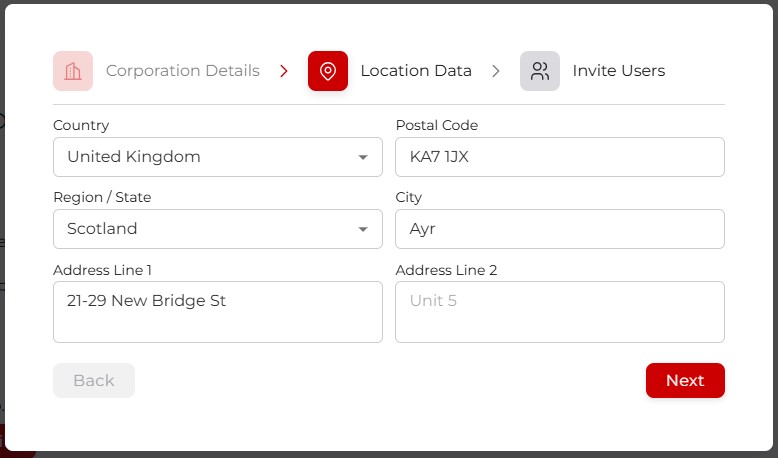
Page Two lets you edit your company address
Page Three lets you invite new members to your team, and specify their access level.
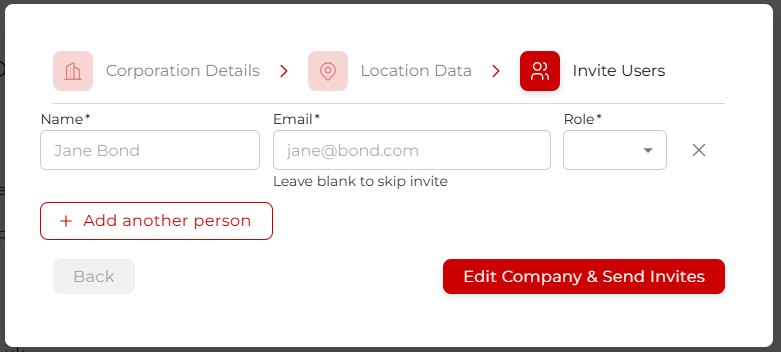
When your done hit Edit Company & Send Invites to save everything
Team Members Table
Here you can search your team, and promote, demote, remove, or invite new members to your company. There are three levels of access, or roles, which are owner, admin, and member. Each has different permissions on the companies account. The team settings page for instance is only visible to Owners and Admins. Members just don't see it in the menu.
Project permissions are different, and will be dealt with elsewhere.
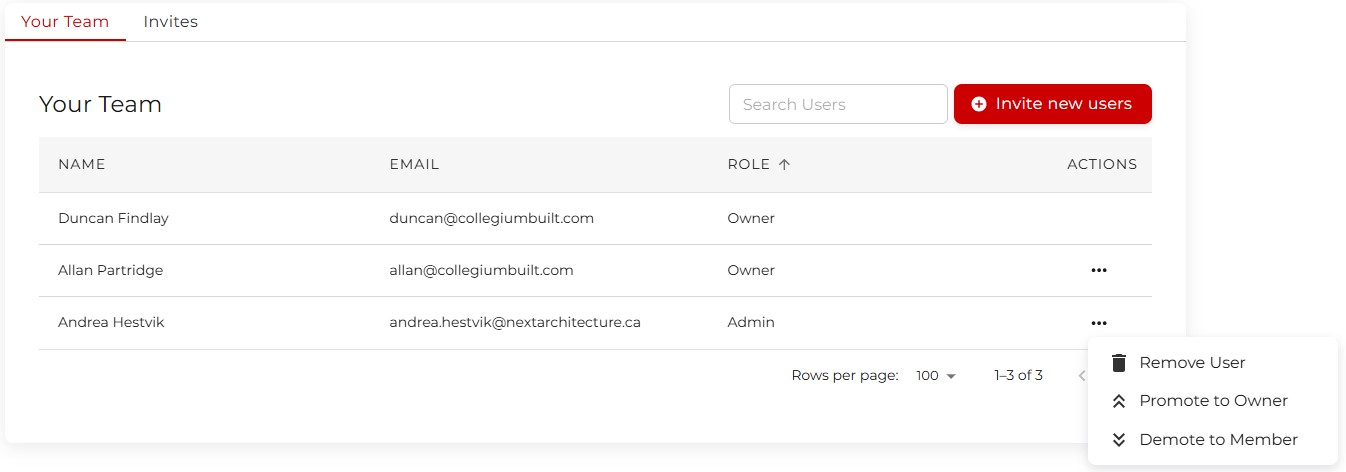
By clicking the three dot menu, you can access the promote/demote/remove functionality. You cannot promote past your own level, so an admin cannot promote someone to owner, or demote an owner. There must always be at least one owner. If an owner is to be removed, they must be demoted to at least admin first.
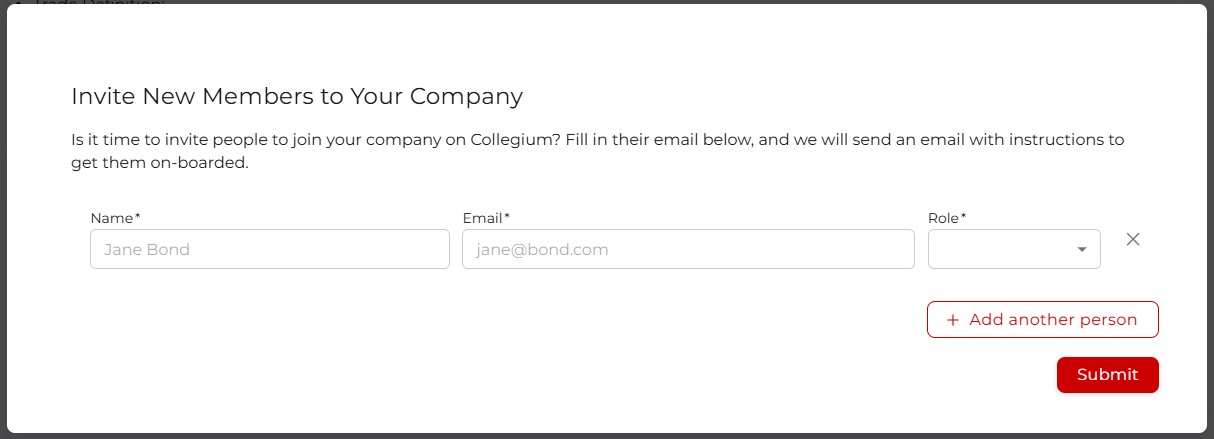
Another way to invite new team members is to click Invite new users, which will open a new window allowing you to send automated invite emails, and specify their role (owner/admin/member)
The invite emails are only viable for 2 days, so it may be necessary to resend or recind an invitation. This can be done from the Invites tab.
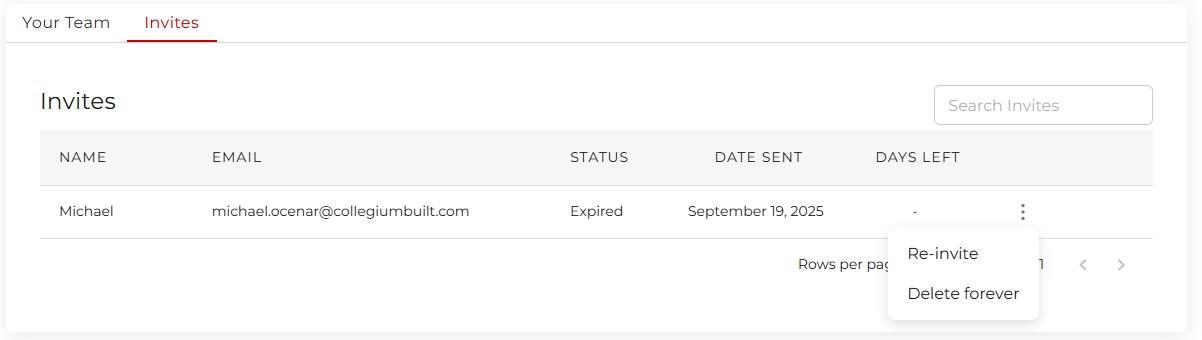
Here you can monitor sent invites, if they have expired you can resend, or you can delete the invite forever. Just click on the 3 dot menu and select what you need.