The Vendor View
This is a quick overview of what is available to you at the top level.
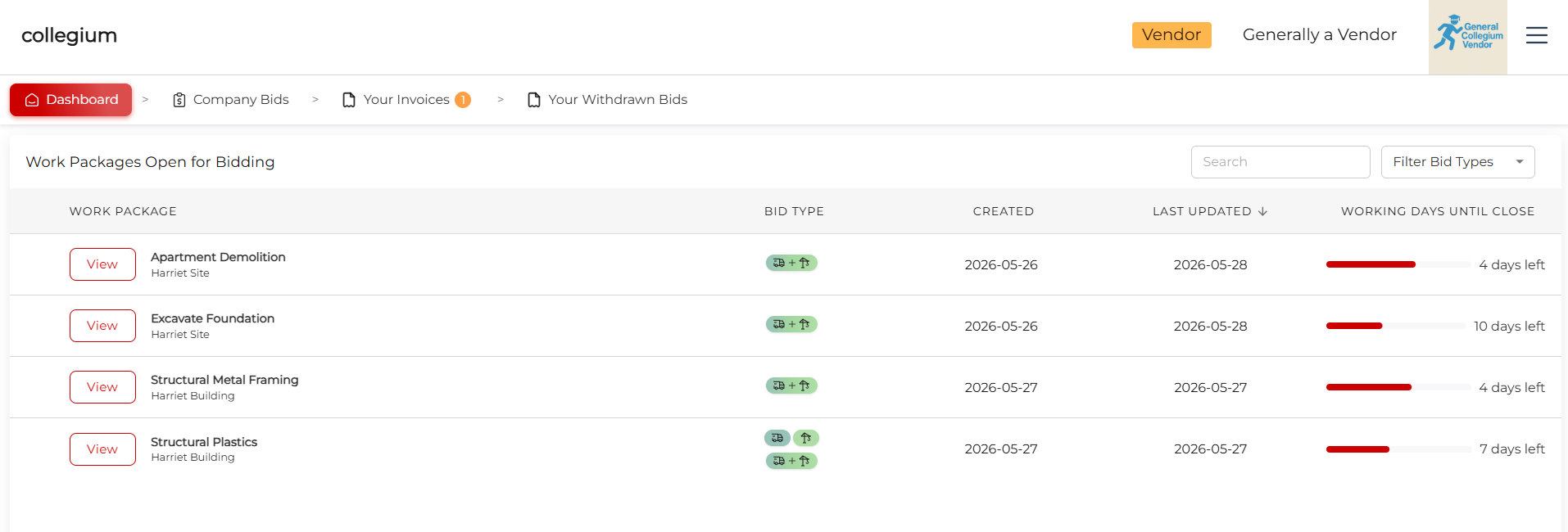
The Dashboard
The default page shows all the work packages available for you to bid on. You can click View and explore the details of any given work package. You can filter by bid type, e.g. Install, Supply, or Supply + Install, or simply type into the search text box. You can see the work package and project name, the types of bid accepted, when it was created, last updated, and how many days left until the bid closes.
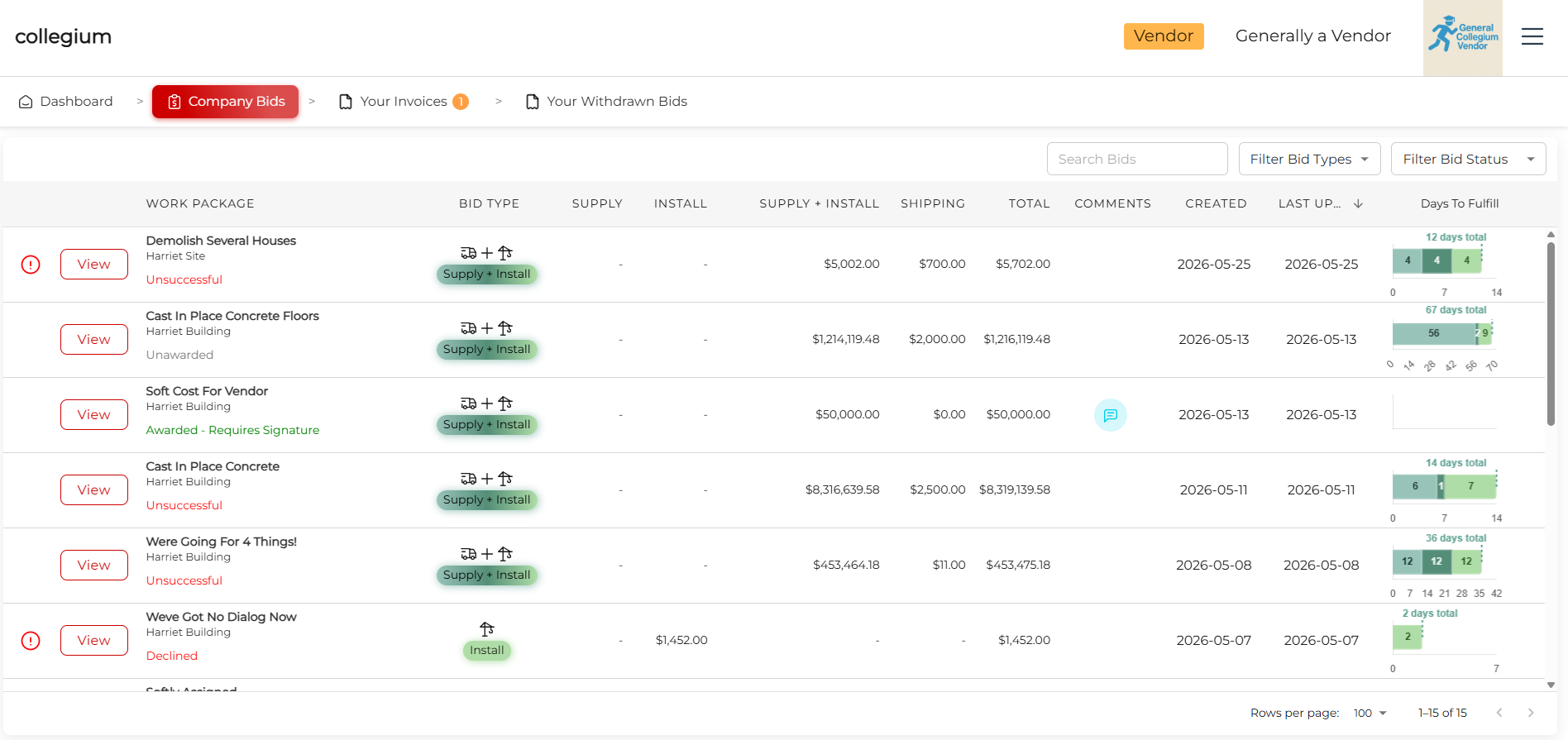
Company Bids
This lists all the work packages your company has bid on. You can View the inner details of the work package, see the work package name, project name, and its approval status (Unsuccessful, Unawarded, Awarded - Requires Signature, Awarded - Signed, Declined), the proposed costs for the submitted bid, when it was created and updated, and a summary of the execution timeline. You can search using the search text box, or filter by bid type, and bid status.
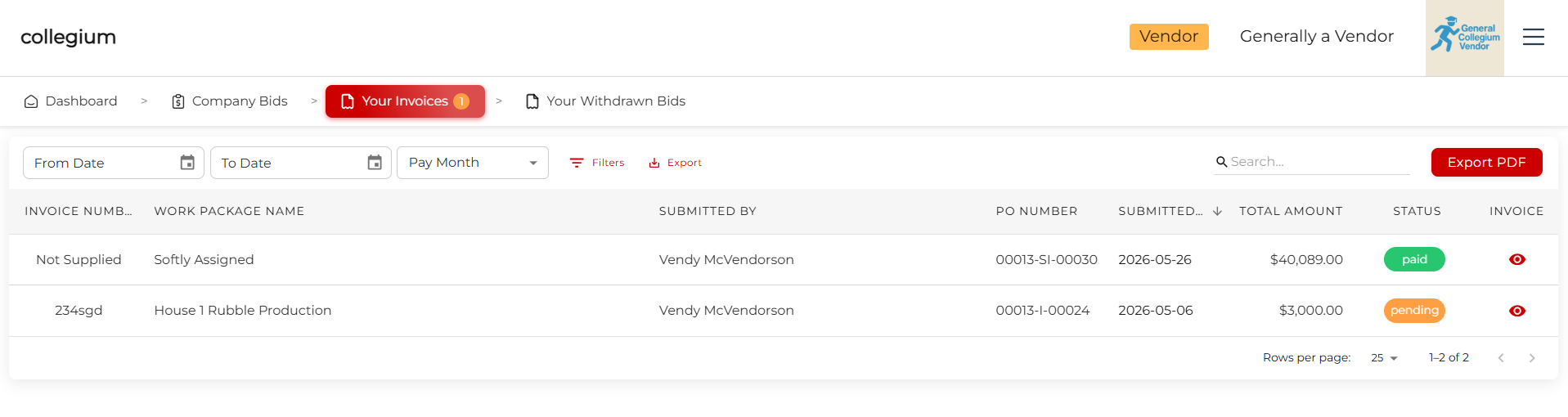
Your Invoices
This lists the details of invoices that your company has submitted. Clicking the eye icon will open the invoice itself in a new browser tab. You can filter by date, either by selecting a start and end date, or selecting a month from the drop down. You may export a Comma-Separated Values (CSV) file of the details in the table which can be opened in any spreadsheet software. You can type into the search text box to filter the invoices. Clicking Export PDF will export the data in the table, and each individual invoice as a single PDF document.
Withdrawn Bids
Here you can see an overview of any bids you may have withdrawn. You can filter the table as elsewhere, and View the work package in greater detail.
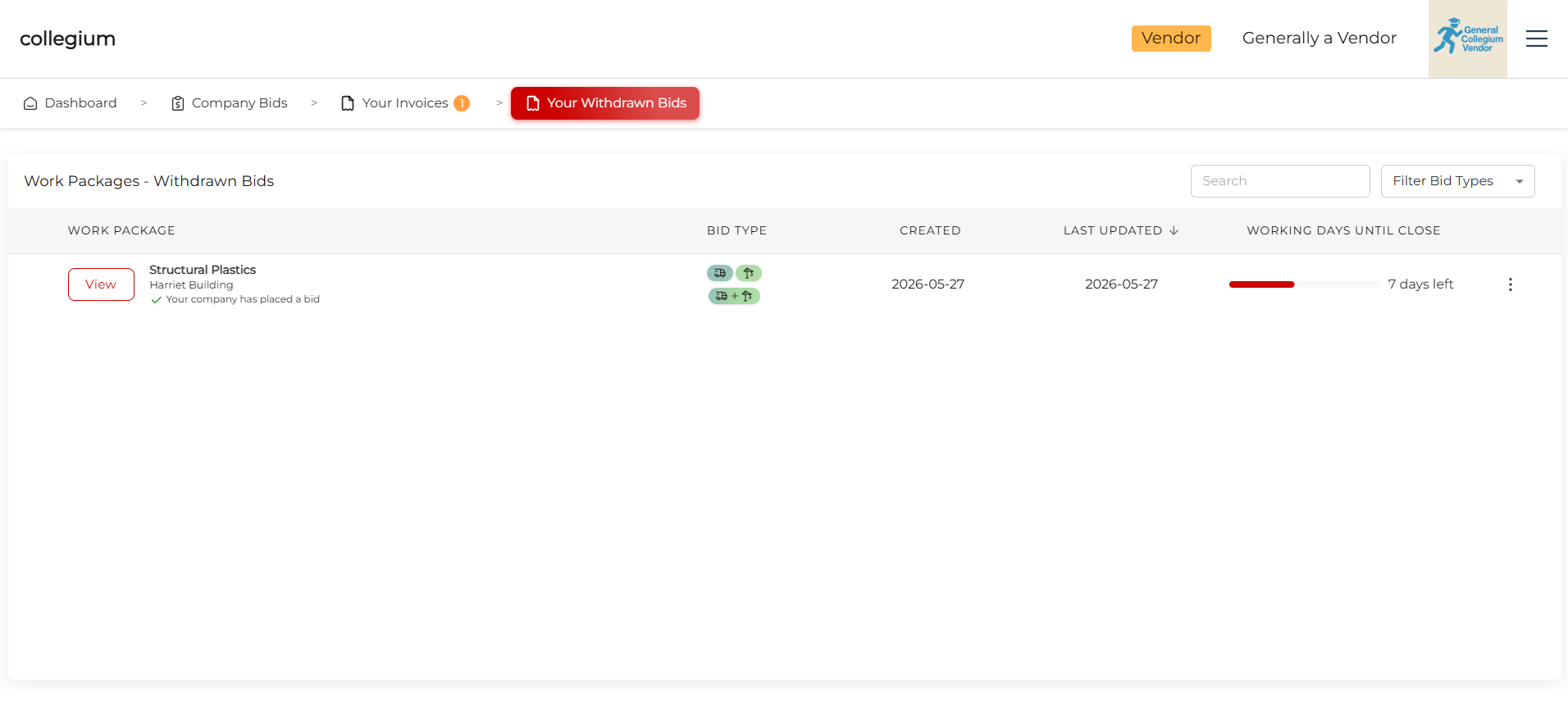
Clicking on the three dots provides an option to Delete the withdrawn bid, or Restore the bid. This will, if a replacement bid has not been submitted and the work package has not closed, restore the bid, meaning it is now visible by the work package owner, and they can evaluate its merits.
