Submitting a Bid
After reviewing a work package and calculating your costs, you are ready to submit a bid. Let's review the process.
The Work Package Overview Tab
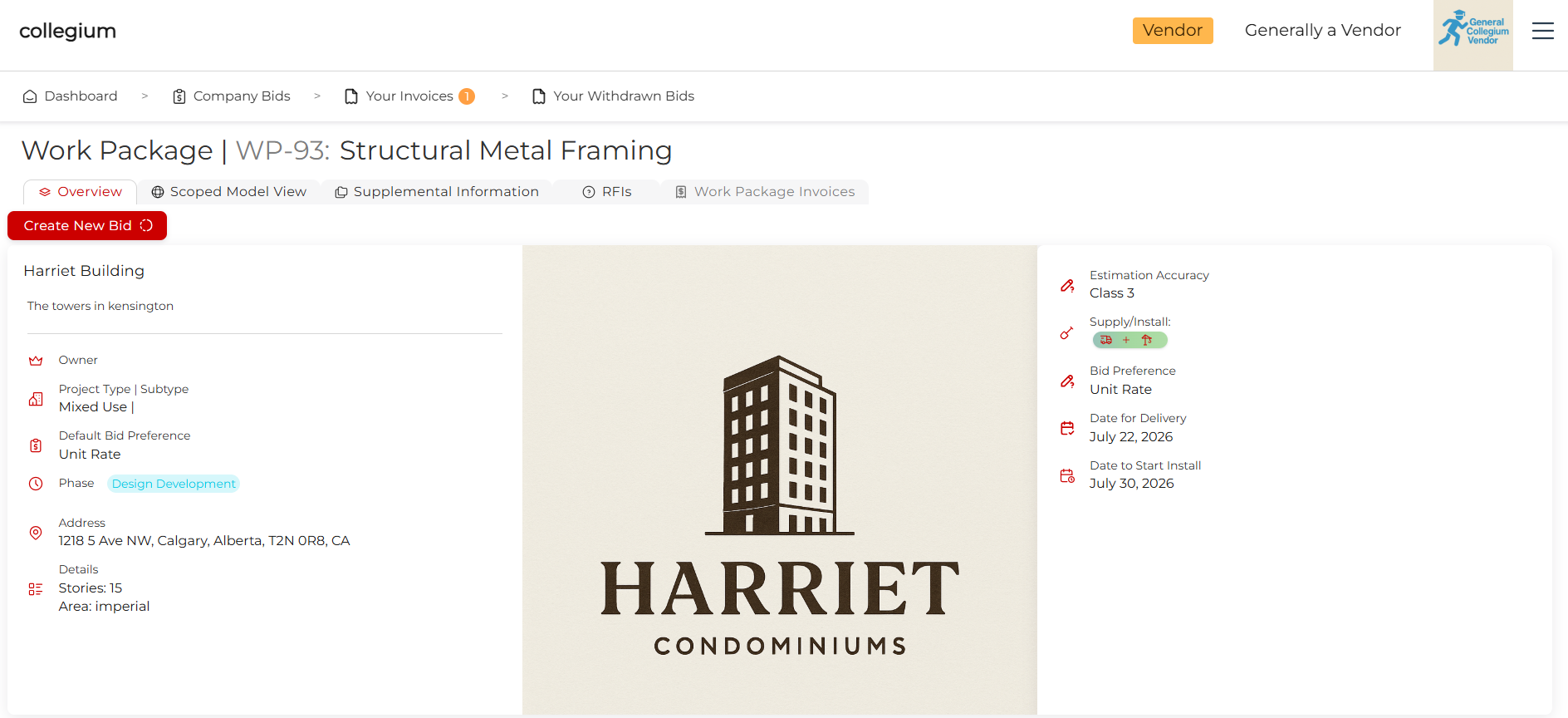
After clicking View on one of the work package tables available to you, you are taken to the overview tab. This gives a brief overview of the project, including the address, the kinds of bids accepted, rough fulfillment dates, and other key details.
Scrolling down, you get a brief overview of the model elements in the work package.
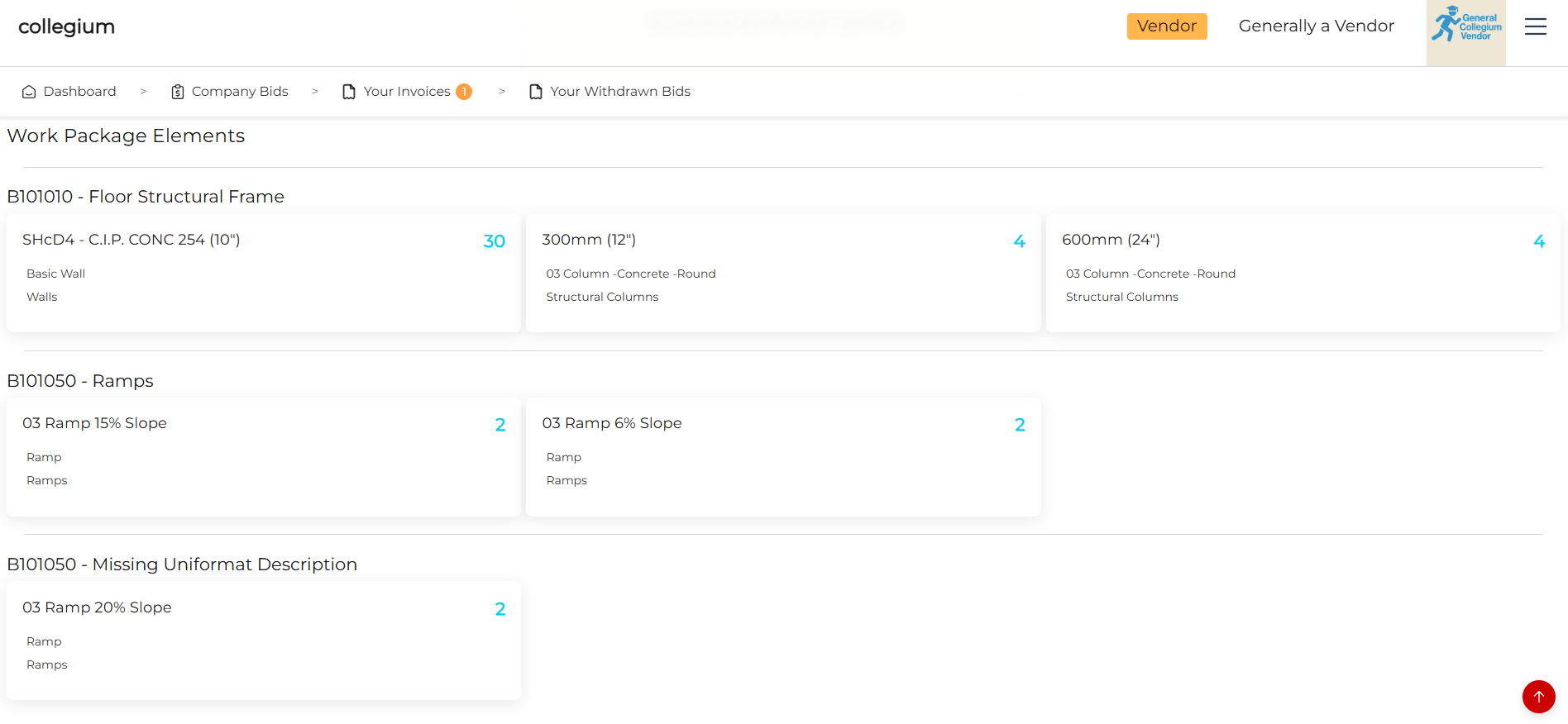
You can now click Create New Bid to open the bid submission window.
The Bid Window
The bid window consists of two steps. We will walk through these one by one.
Edit Bid Details
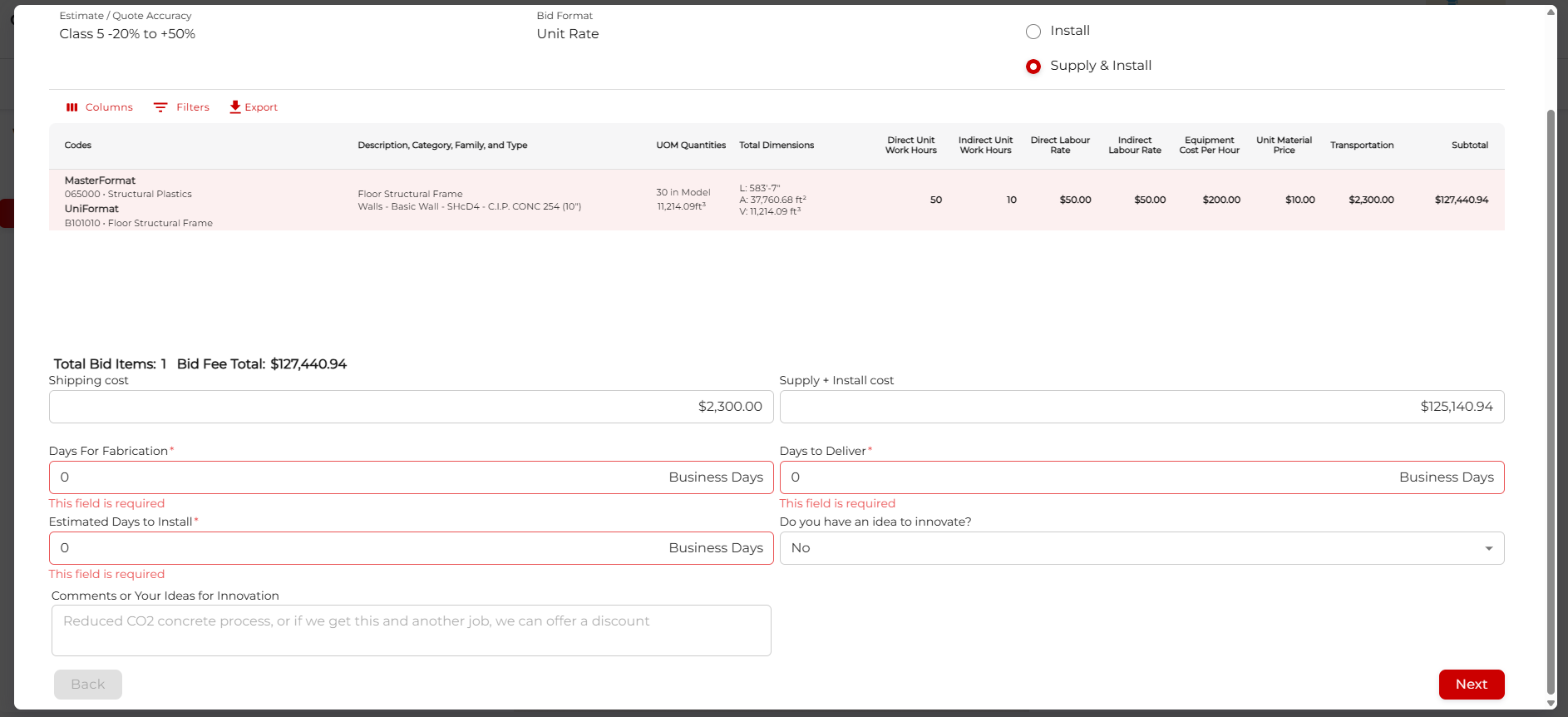
The first page lets you see the work package name, the estimate accuracy required, and the bid format (unit rate or lump sum). The next part is the Basis of Quote/Estimate. Here you can select the type of bid you want to submit, based on the options made available by the work package owner. The choice you make changes the columns you see in the next step.
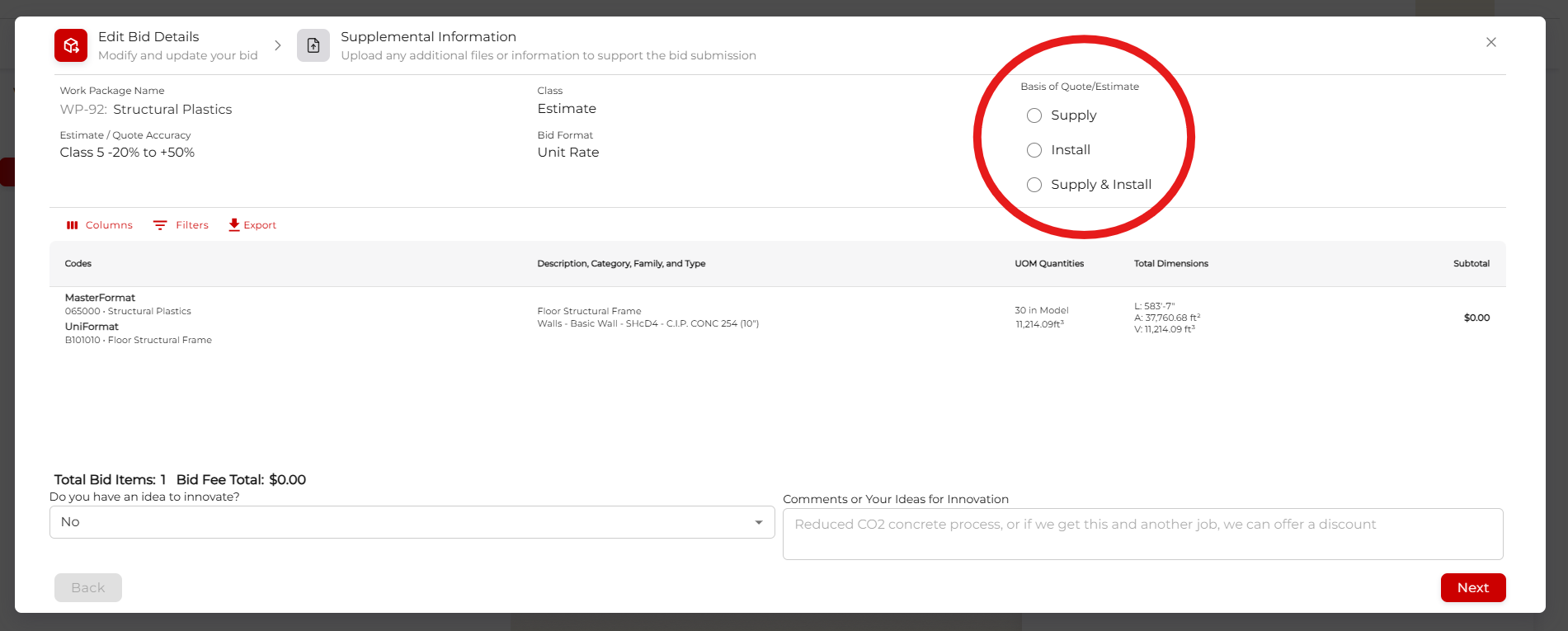
Now we can enter pricing. In the middle table, you can see the Uniformat and MasterFormat codes, a brief description of the model element, what the UOM (Unit of Measure) is, and how many of those units of measure are included. You can edit the visible Columns, or Export the table to a Comma-Separated Values (CSV) file to work with it as a spreadsheet.
Next to these are the pricing tools. These vary depending on the type of bid you are submitting. For example, there is no need to transport goods if you are submitting an install-only bid. Let's fill them in:
- Direct Unit Work Hours - how many hours you think it will take your workers to complete the job.
- Indirect Unit Work Hours - how many hours you think it will take to administer your bid.
- Direct Labour Rate - hourly rate for the on-site workers.
- Indirect Labour Rate - hourly rate for office staff and administration.
- Equipment Cost Per Hour - your equipment fee, hourly.
- Unit Material Rate - cost per specified UOM. Per door, per m3 of concrete, or ft2 of flooring.
- Transportation - cost to transport the goods to site.
- Subtotal - calculated field. The line total based on the numbers supplied.
This example is for a single group of model elements, but there can be any number, so you may need to scroll down and fill everything out. This table is dynamic, and will update both the subtotal and the costs in the summary below.
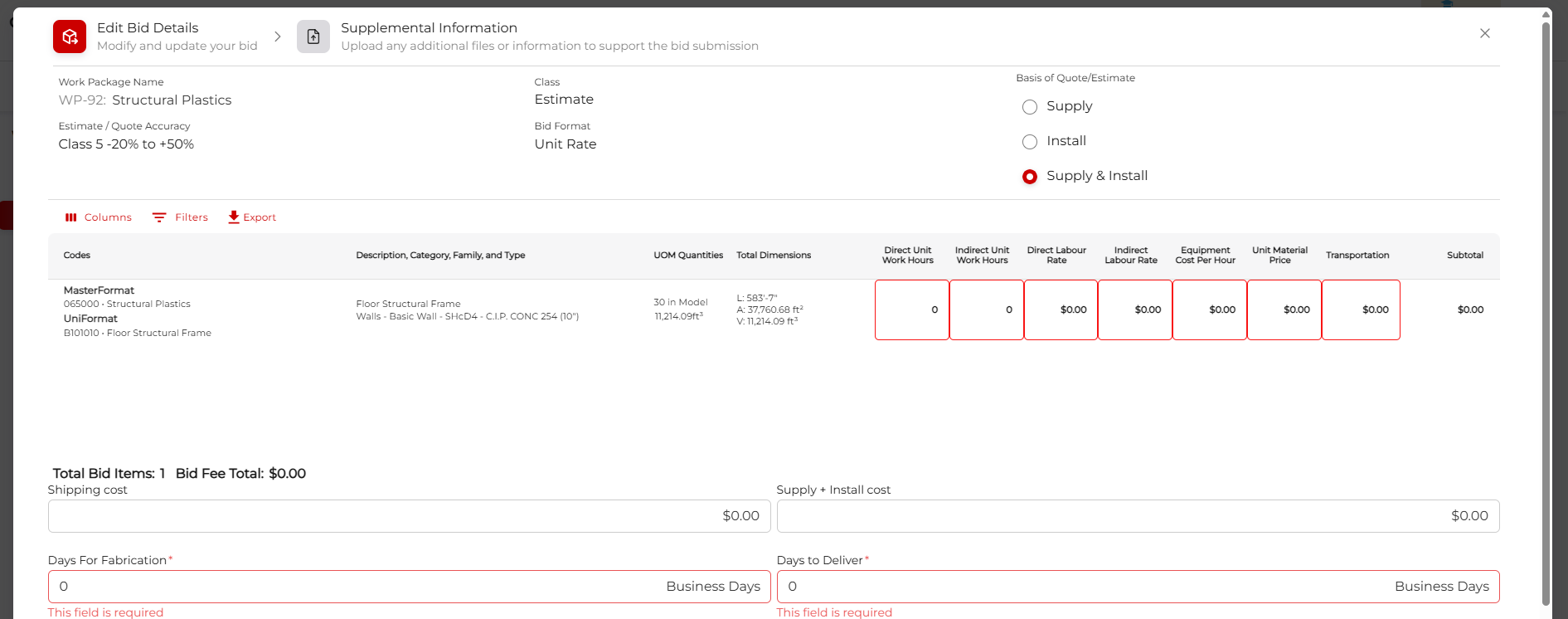
Below the table, the cost totals are displayed for everything entered above. In this case, the Shipping Total and Supply + Install fields are shown, but these fields will change depending on the Basis of Quote/Estimate. You should also fill in the timing. Enter Days For Fabrication, Days to Deliver, and/or Estimated Days to Install based on your circumstances. Do you have an idea to innovate? is a simple yes/no switch. If you do, enter the idea in Comments of Your ideas for innovation. Perhaps your company has excellent photovoltaic roof tiles that cost a bit more but generate electricity, or perhaps you are willing to offer a 10% discount if you are awarded more than one bid. You are encouraged to come forward with ideas to improve the project.
Bid Supplemental Information
Here you can upload any supporting material for your bid, such as a portfolio or technical documents for a new product. Previously uploaded files will appear in the table below. You can either drag the file onto the upload icon, or click the upload icon and navigate to your files using your computer's file navigator.
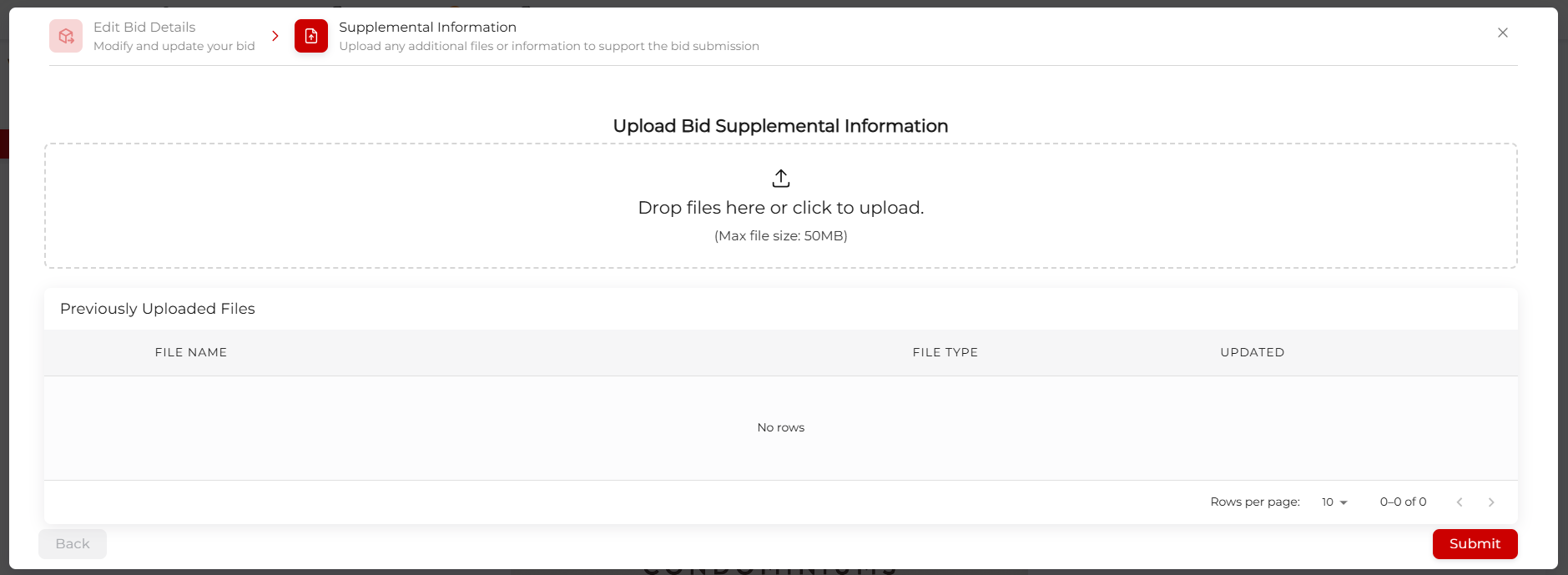
When you are satisfied, click Submit.
Back to the Work Package Overview
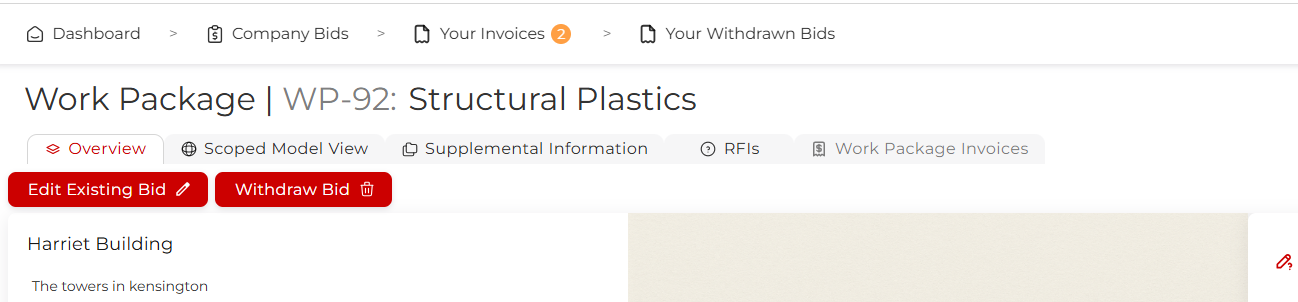
After submitting your bid, you will be taken back to the work package overview page. The Create New Bid button has become Edit Existing Bid. If you click this, you will be able to edit the particulars of your bid as we did above. After the work package closes, this becomes View Bid, which opens the same flow in read-only mode.
We also see a new button, Withdraw Bid. If you decide you no longer want to compete for this work package, click Withdraw Bid and your bid will be withdrawn from consideration. You will be able to reinstate or delete the bid from the Withdrawn Bids tab.
Dashboard
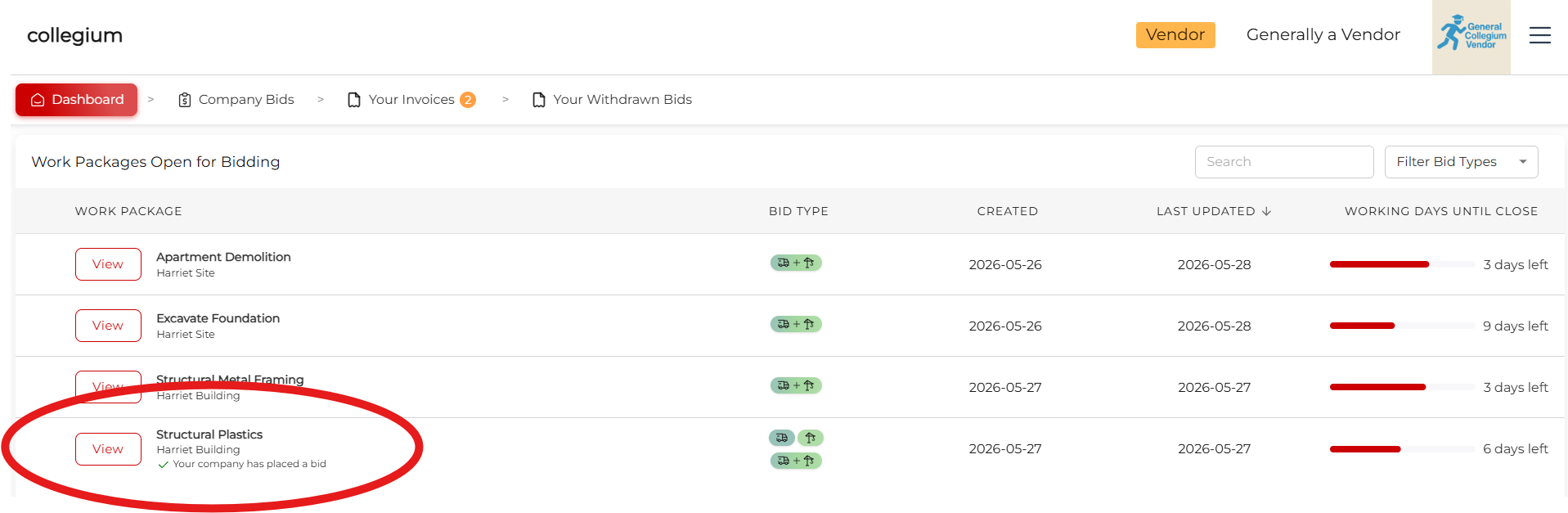
Now you have submitted a bid, the platform displays a message under the work package name on the dashboard.
Company Bids
Similarly on Company Bids, the work package is listed, and the status is displayed.
