Submitting An Invoice
You have completed some or all of the work for your awarded work package, and it's time to submit an invoice.
The invoice you are submitting must be a single PDF file, combining all relevant documents, like a Statutory Declaration and a WCB document.
There are two ways. Let's explore.
Option 1: Emailing an invoice
Navigate to Company Bids, and open the work package you wish to invoice. Take note of the PO number listed on the page. This only appears on awarded bids, and Collegium can use this to track all associated invoices, bids, work packages, and projects.
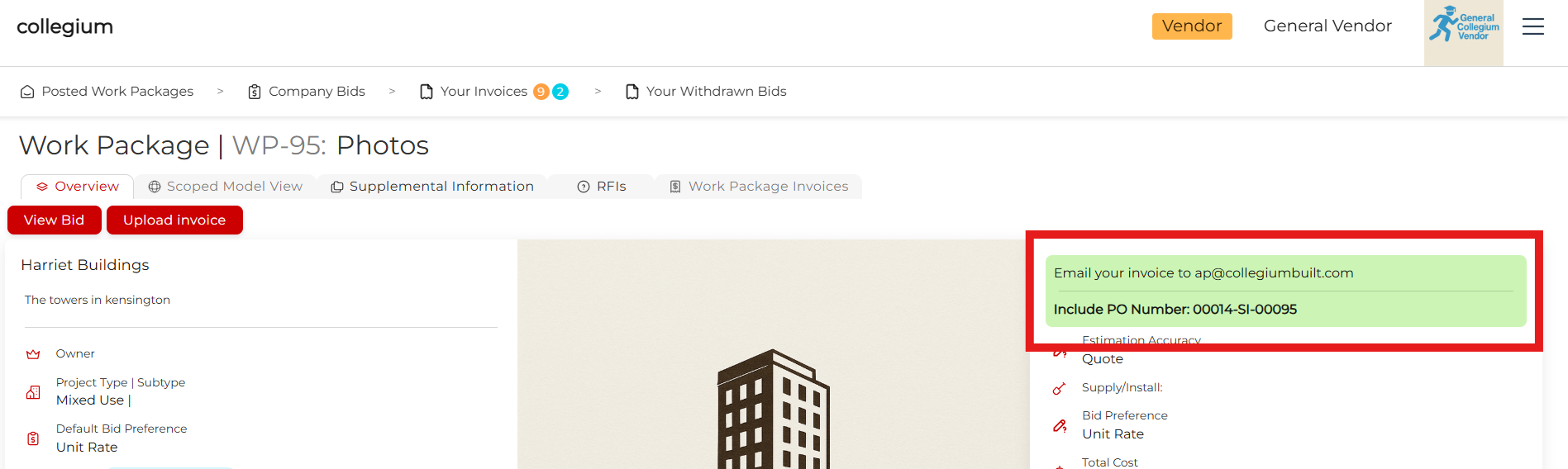
Use this when preparing your invoice and simply email the invoice PDF to:
As long as the invoice has all required fields, our AI workflow will extract all relevant information from it, and in a minute or so you will see it appear in the Your Invoices tab, and Work Package Invoices.
Required fields are:
- PO Number
- Total
- Date Issued
- Statutory Declaration Document (second invoice forward)
- WCB Document
Once the project team approves the invoice, it will be scheduled for payment.
Option 2: Submitting within the app
As above, navigate to Company Bids and open the work package you want to submit an invoice for. Click on Upload an Invoice to open the Invoice Wizard.
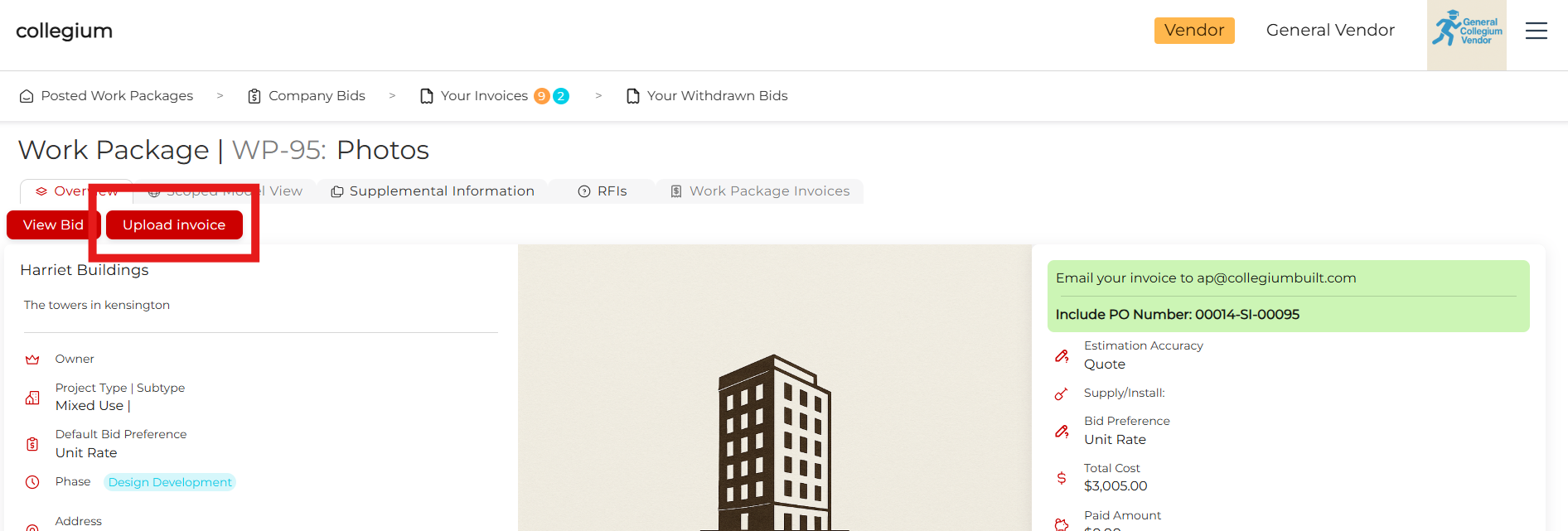
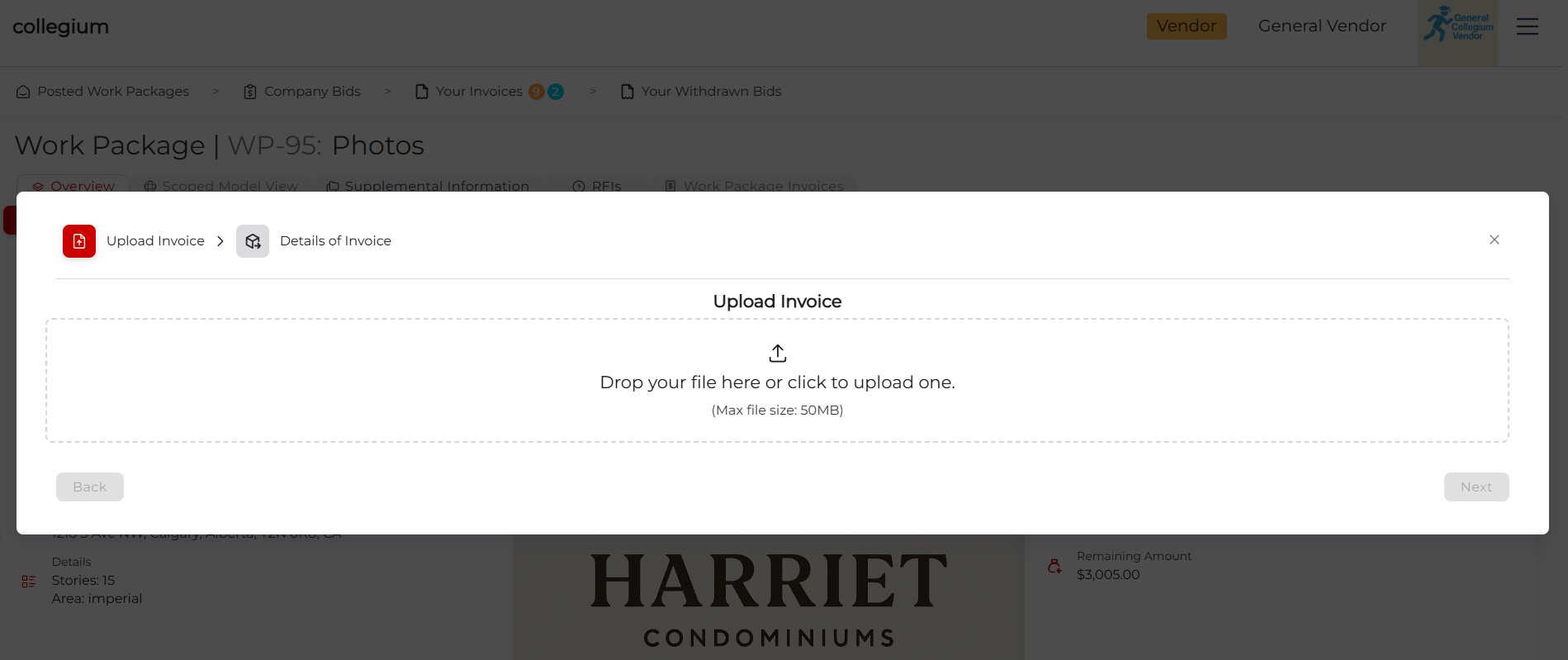
The first step is to upload a PDF. Either drag the file onto the upload icon, or click on it and navigate to the invoice using your file explorer.
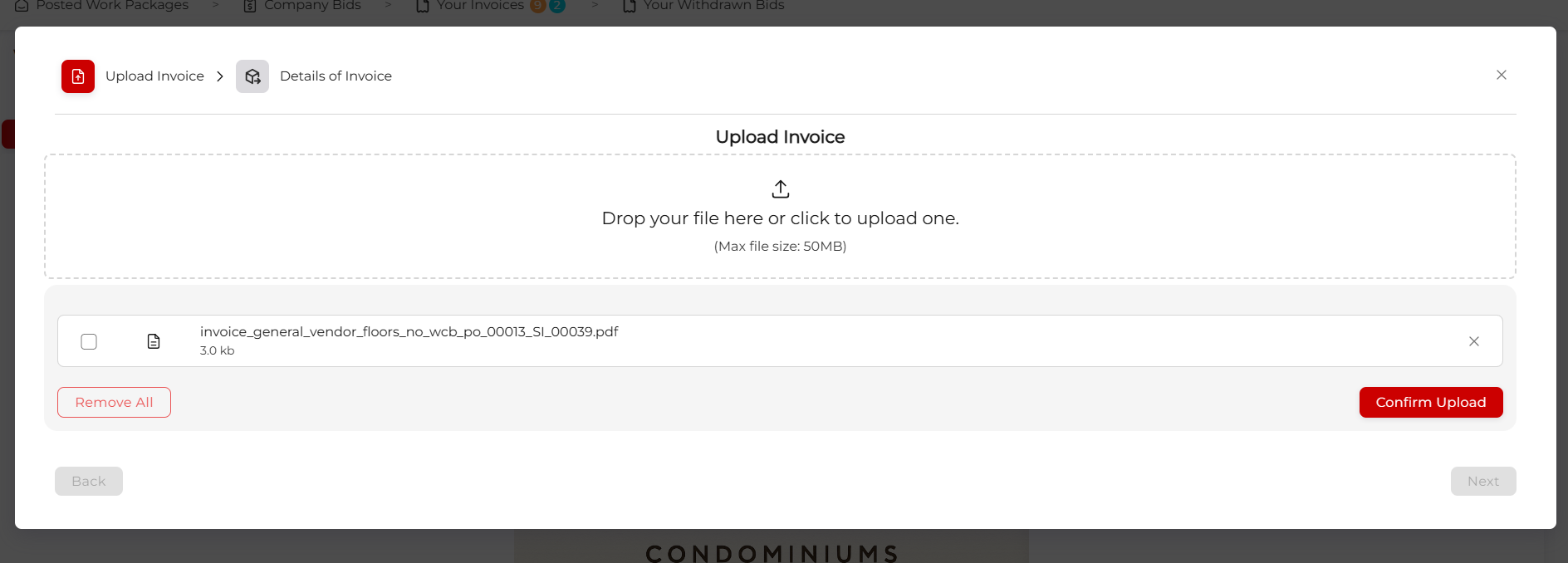
Once you've selected your file, click Confirm Upload to send the invoice to our AI for processing.
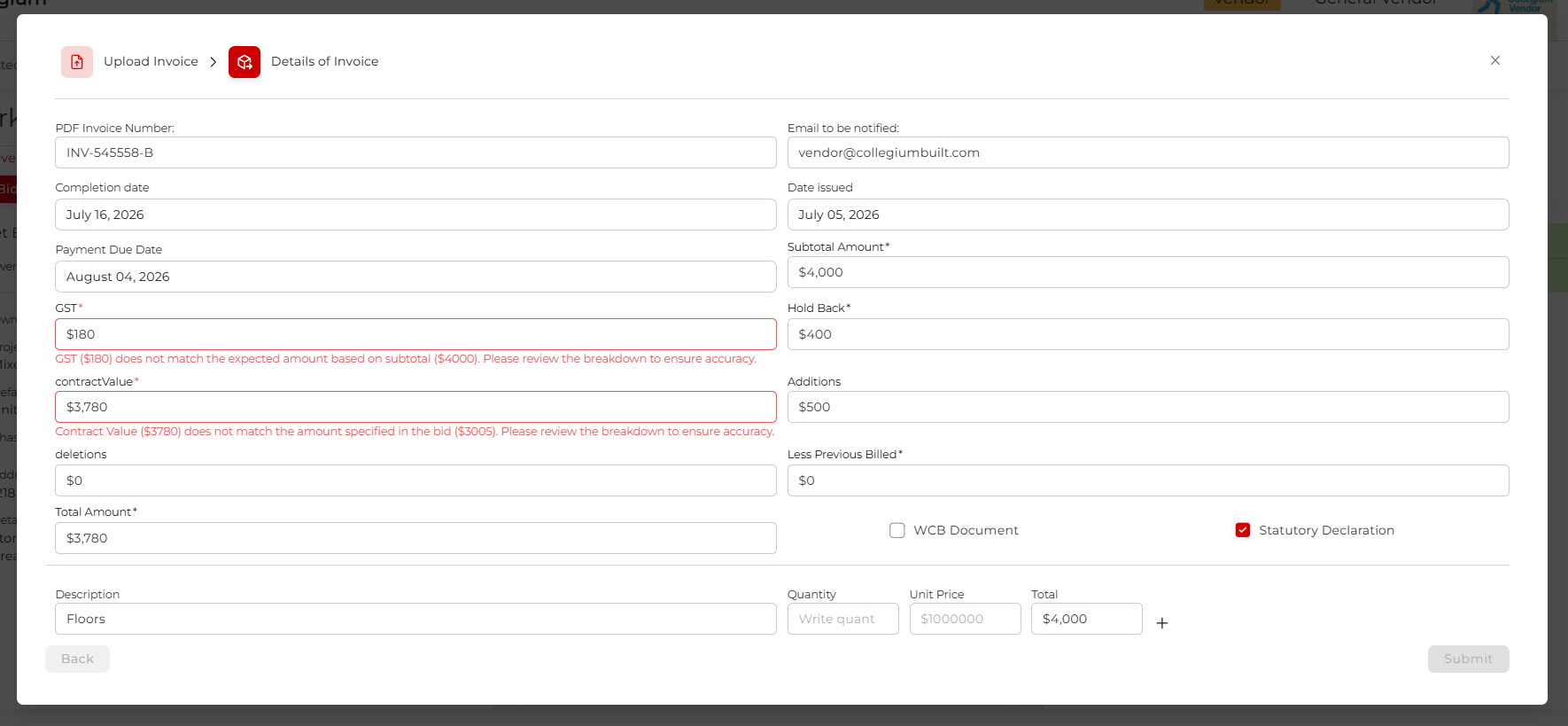
After a few seconds, the screen will update to display the information extracted from the invoice. The invoice itself has been stored, and can be viewed once you finish this process.
There is validation built into the form, for instance, both a Statutory Declaration (after the first invoice) and a WCB Document are required, and if none has been detected, the invoice cannot be submitted. If on review, you don't believe that this is correct, you can click the checkboxes to say these documents are there. If the platform has perceived any issues with the data, it will highlight the potential problems on the form.
If there's a fundamental issue, like missing documents, close the wizard and try again with a new file.
Otherwise, once you have completed your review, and everything looks good, click Submit to save the invoice data.
Viewing the invoice
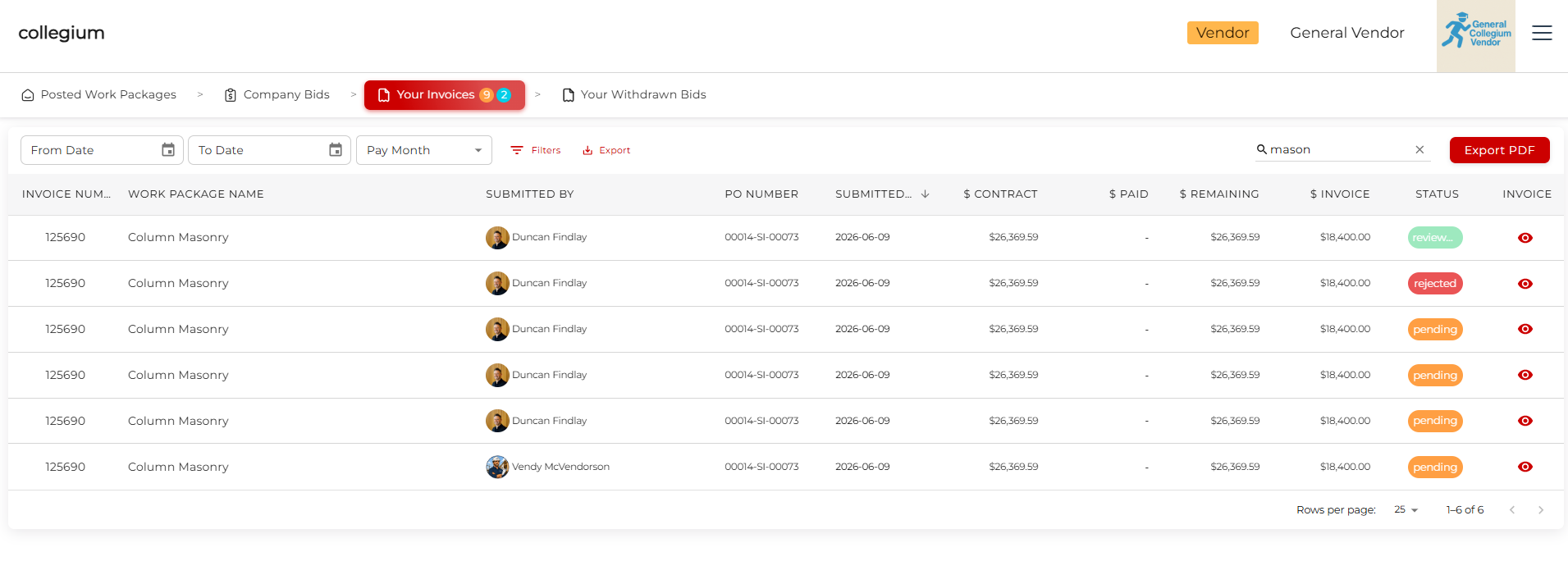
Once successfully submitted, you can navigate to Your Invoices for an overview of all the invoices you have on the platform. Click the eye icon on the right to view the invoice in a new browser tab.
Alternatively, you can navigate to Company Bids and open a work package. If you have submitted an invoice to this work package, you will be able to click Work Package Invoices to see the same view, but filtered to invoices from this work package.
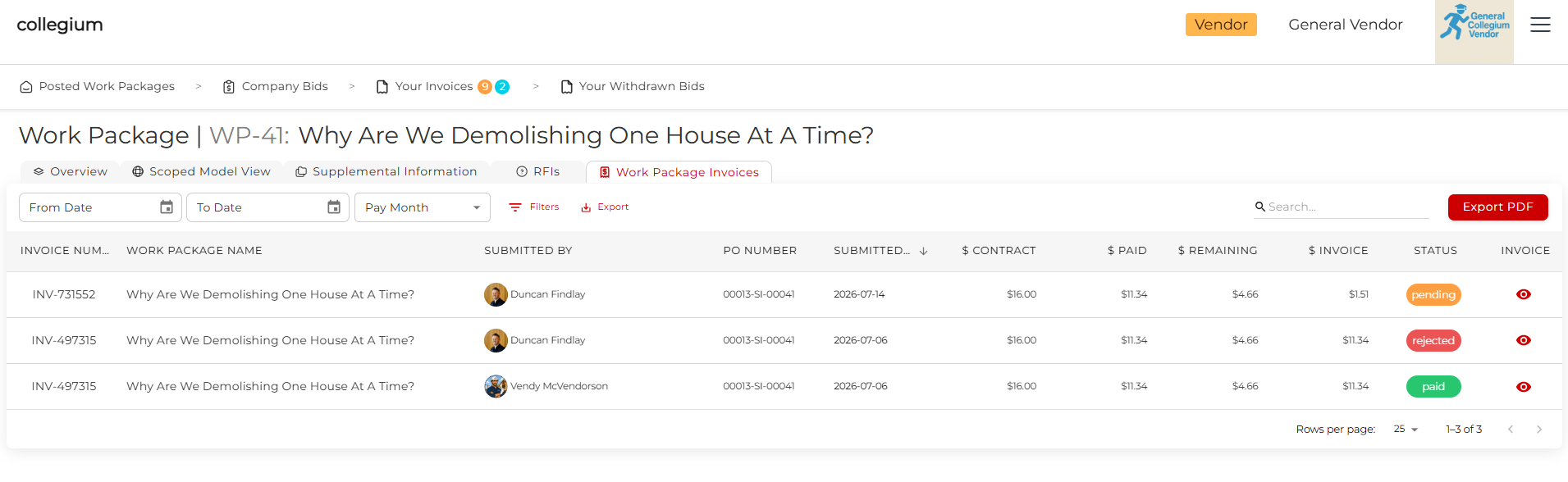
For either table, you can filter by date range, using From date and To date date pickers, or selecting a month from the dropdown. If you want to download a PDF of the table and all visible invoice documents, filter the table as you want, and click Export PDF. This will make a larger document containing the table and all invoices, limited by the dates selected.
You can also click Export to download a comma-separated values (CSV) file of the table data with current filtering.