Invite Users
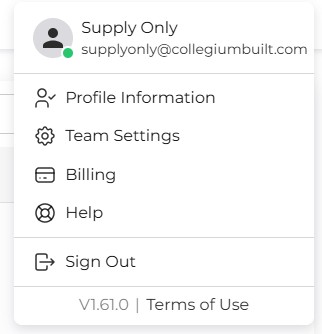
Step 1: Open Team Settings
As a company owner, you can invite users to join your company. To do so, navigate to Team Settings.
Step 2: Invite New Users
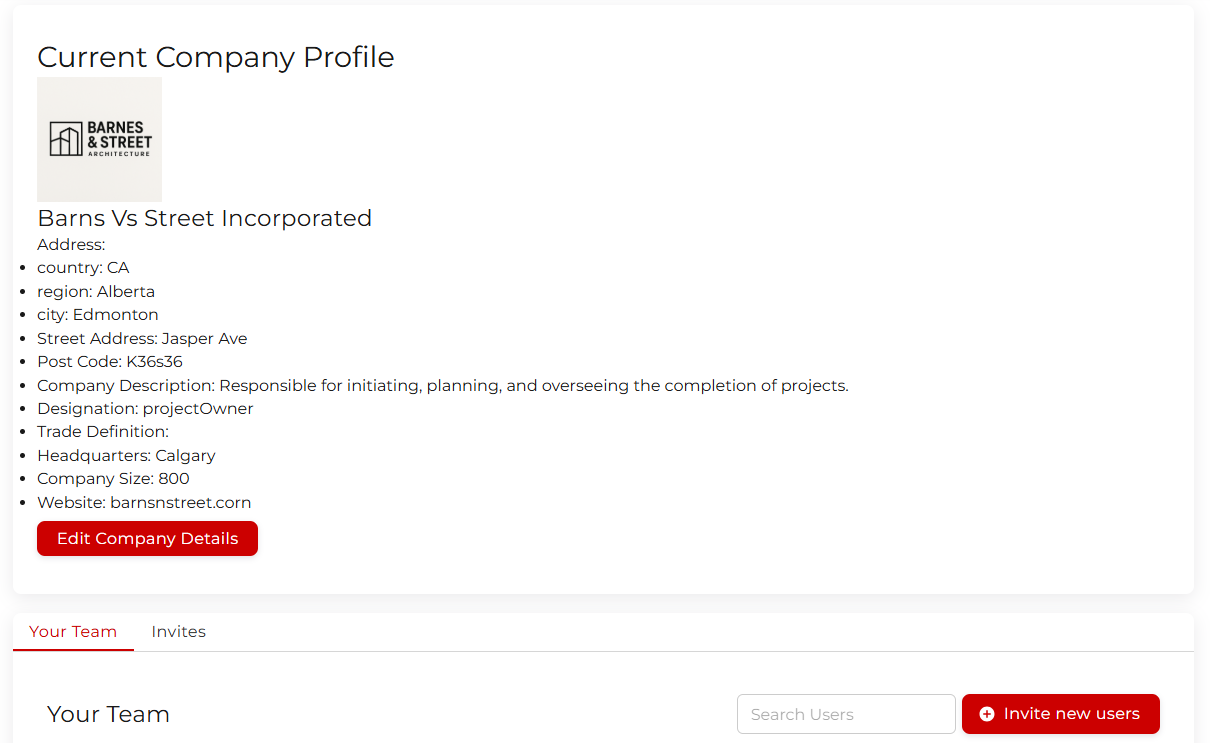
Once there, click on Invite New Users.
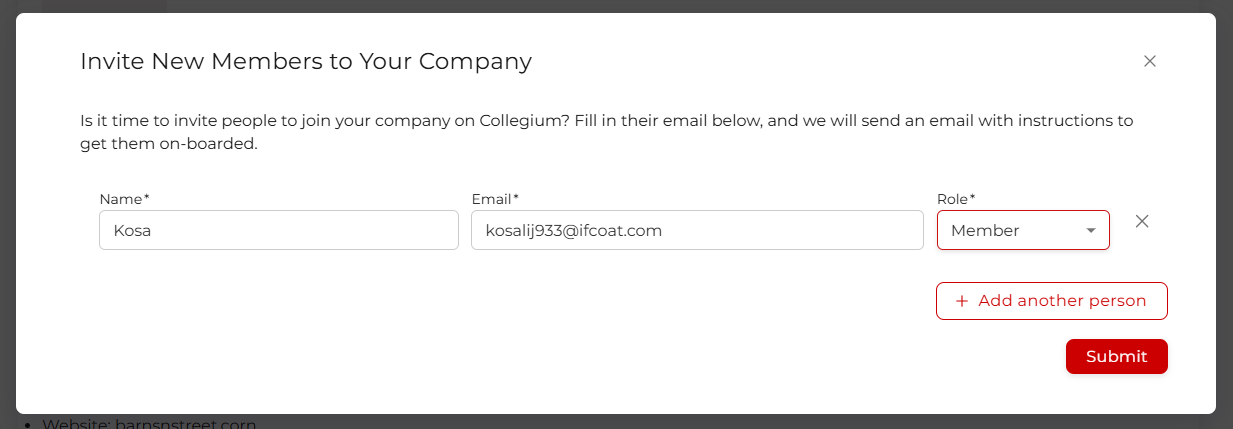
Here you can enter the name and email of the person you are trying to add. Select a role for each user. The role determines their level of access to your company. If you want to add more than one person at a time, click Add another person and you can add several more rows to be filled out. When you are happy, click Submit and the platform will send invitation emails to each person.
Step 3: Review Team Members
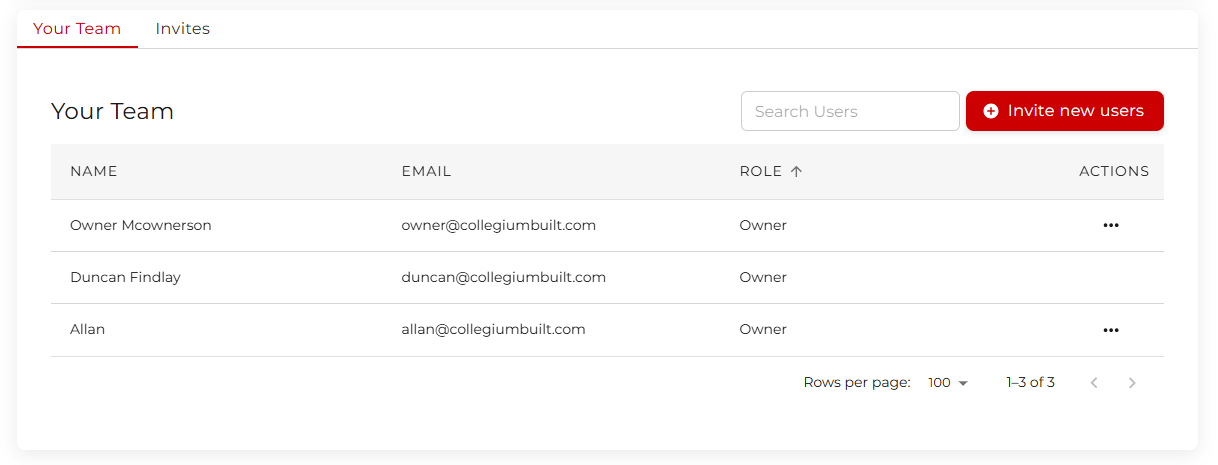
Once they complete onboarding, they will appear in the Your Team table, where you can promote, demote, or remove a user.
Step 4: Manage Pending Invites
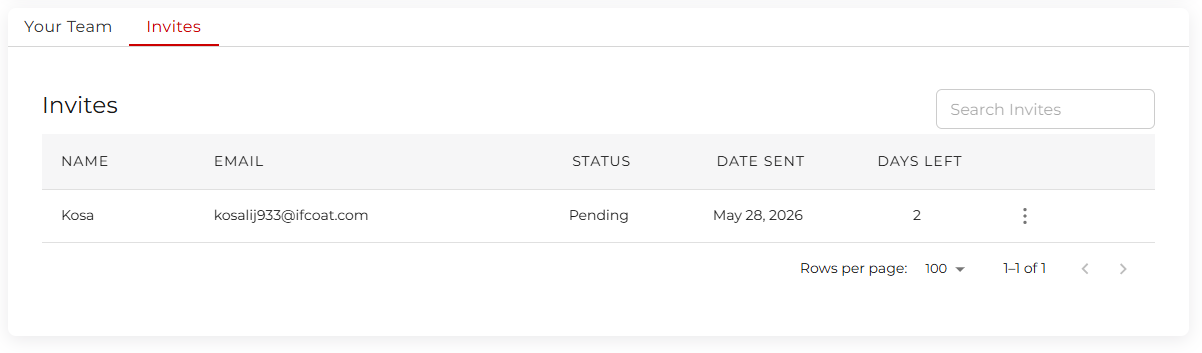
After an invitation is sent, the new user has 2 days to complete onboarding. Before they complete the process, you can manage the invitation from this table by clicking the actions button and selecting Revoke Invite. If the invite has expired before the user completed onboarding you can also resend the invitation, or delete the invite altogether.