Validate the BIM
BIMs are complicated, and it's easy to miss small issues. Collegium has a built-in Model Validator which will list any detectable data or other issues which can be passed on to the architecture team. It is highly recommended that all model issues are resolved before building any work packages.
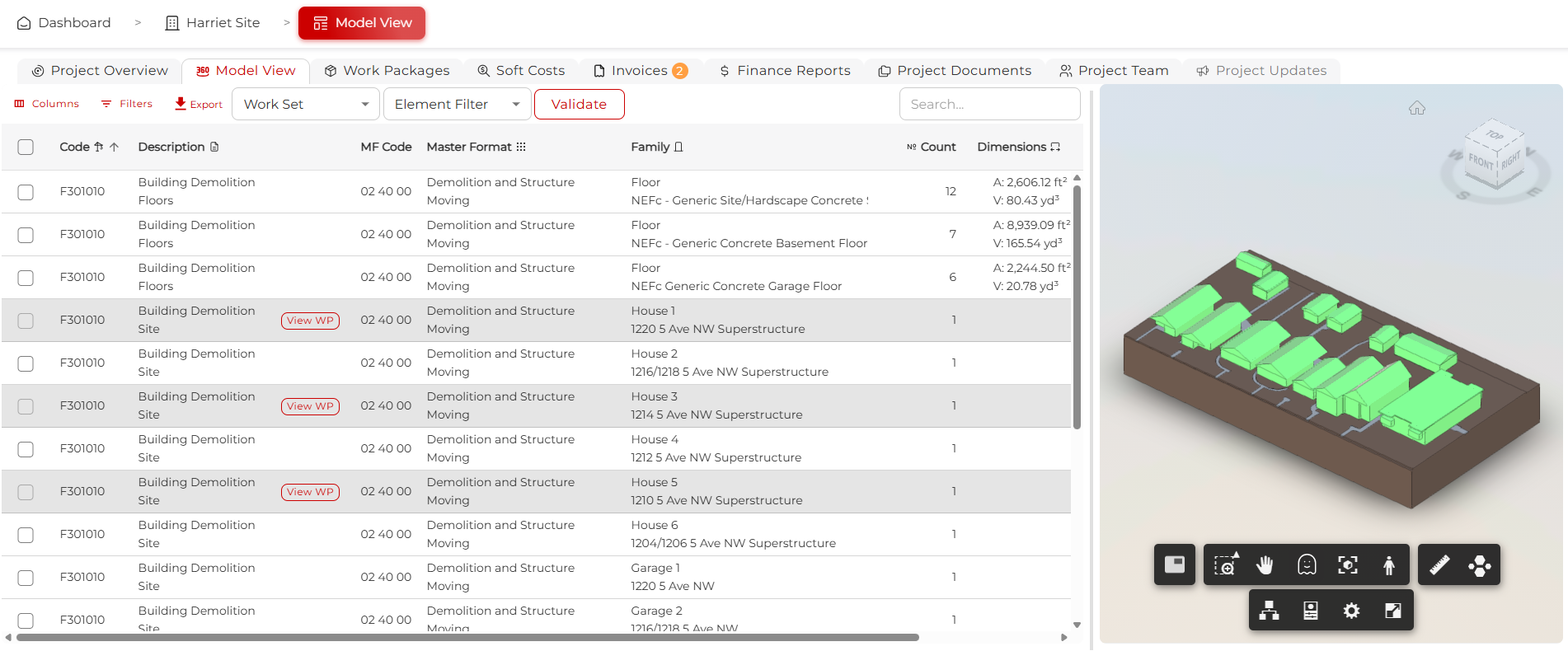
Step 1: Open the Model Validator
Assuming you have linked a model to the project, navigate to the Model View tab. Click Validate at the top.
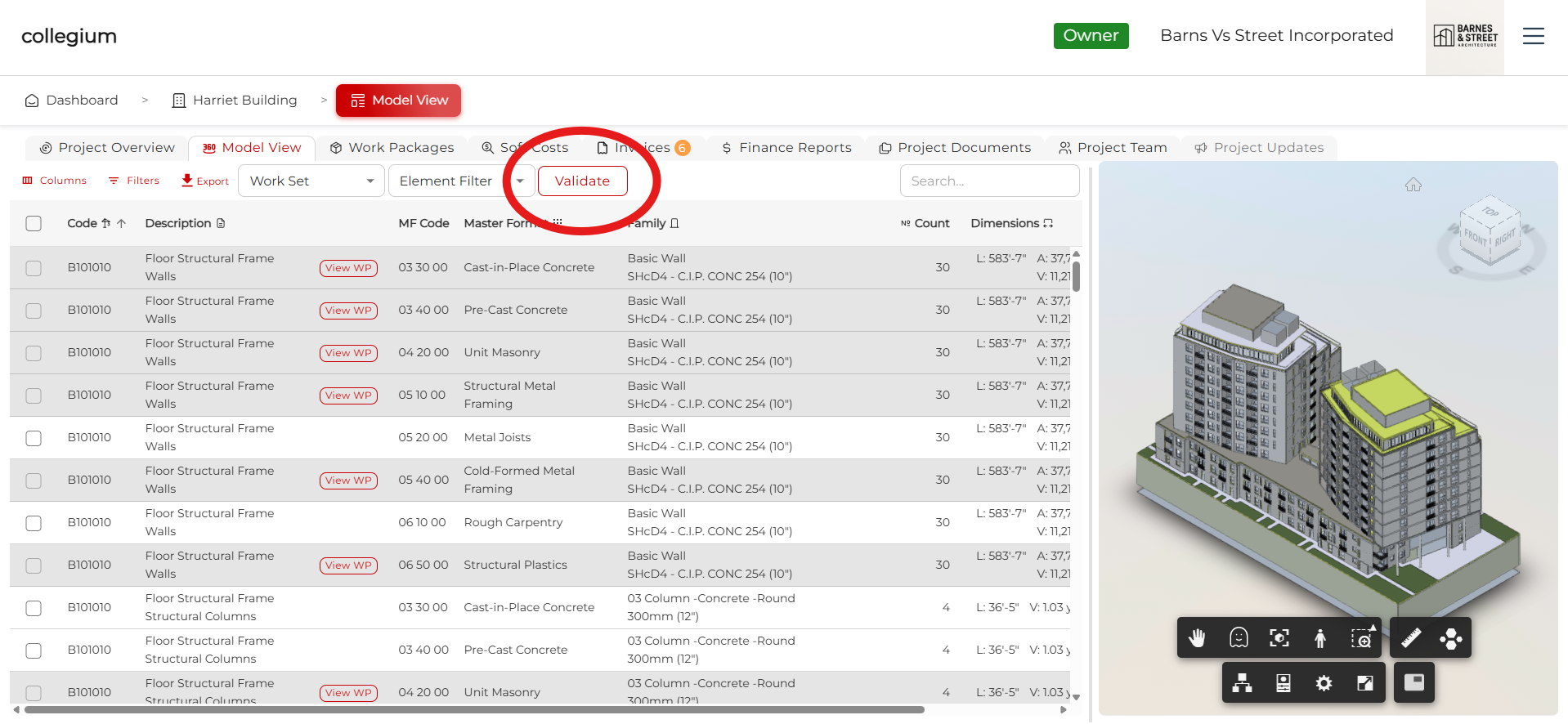
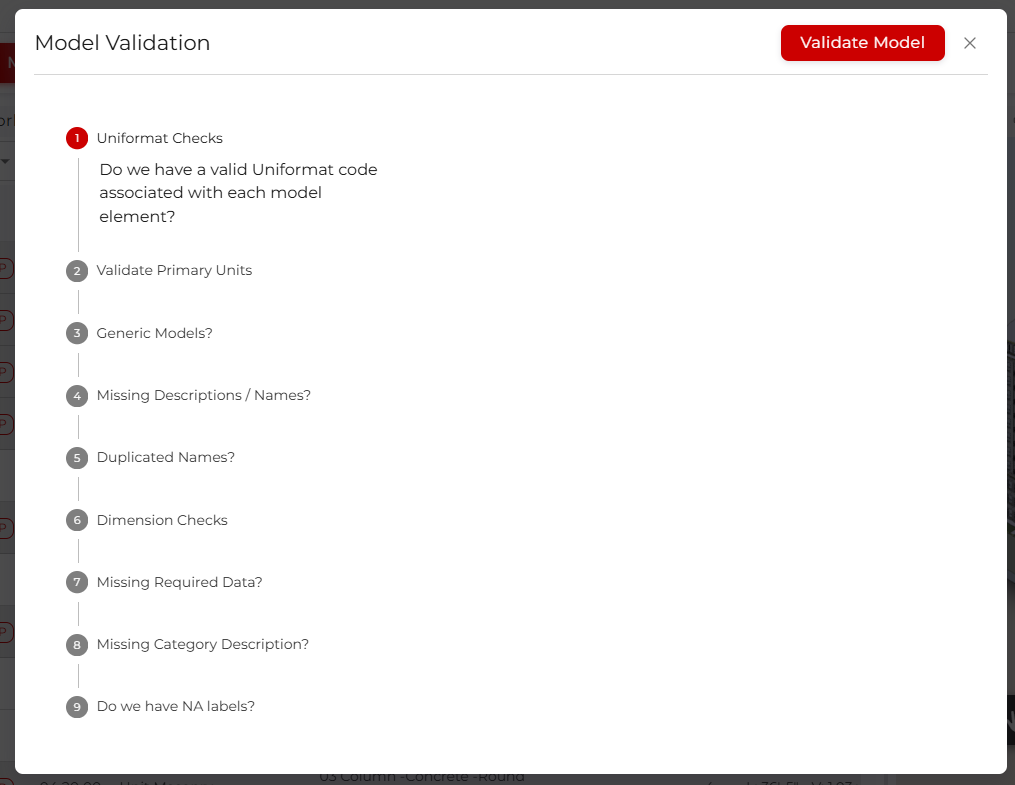
This opens the Model Validator dialog. Click Validate Model and the software will cycle through all the model tests.
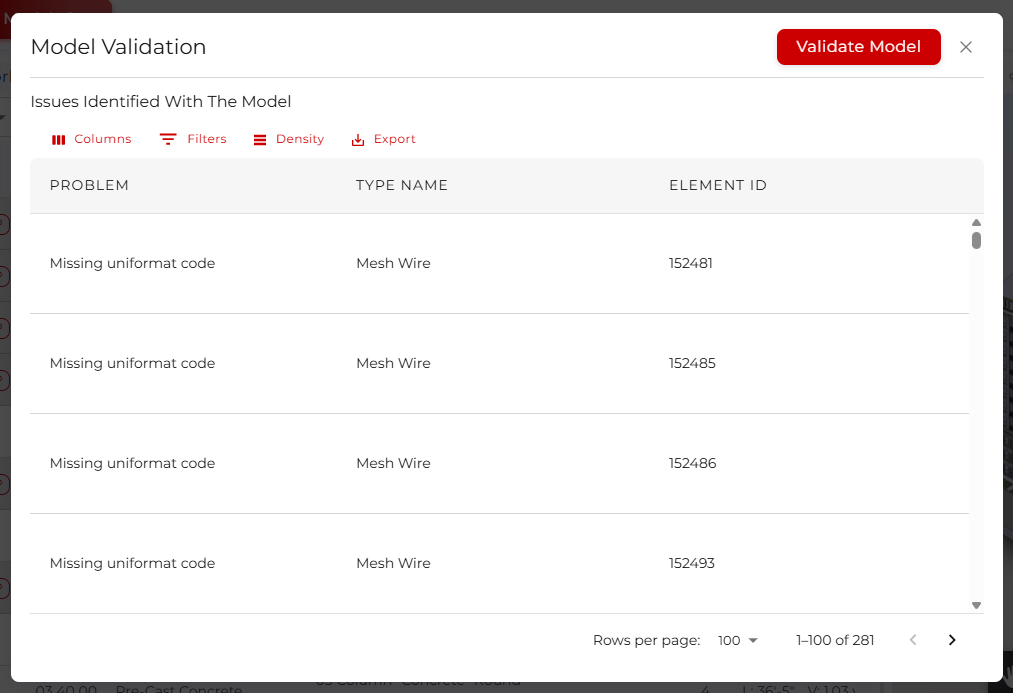
Step 2: Evaluate the error table
Once the tests are complete, a table will be displayed that lists all the issues the validator discovered. You can Export this as a comma-separated values (CSV) file, which can be viewed in any spreadsheet software. This table lists the problem, the type name of the model element, and the exact element ID. Your architecture team can use this to identify and fix the issues with the BIM.
Step 3: Iterate
Once the architecture team has republished the model, relink the BIM to the project, and revalidate to make sure everything has been addressed.
Step 4: No issues
If the table is empty, the BIM has passed validation and is ready for work package creation.