Managing Soft Costs
Not everything in a construction project is modelled. Things like inspections, commissioning, and photography are necessary and incur costs, but do not lend themselves to architectural modelling. Collegium lets you account for these costs and route them through the invoicing workflow quickly and conveniently.
Step 1: Navigate to the Soft Costs tab
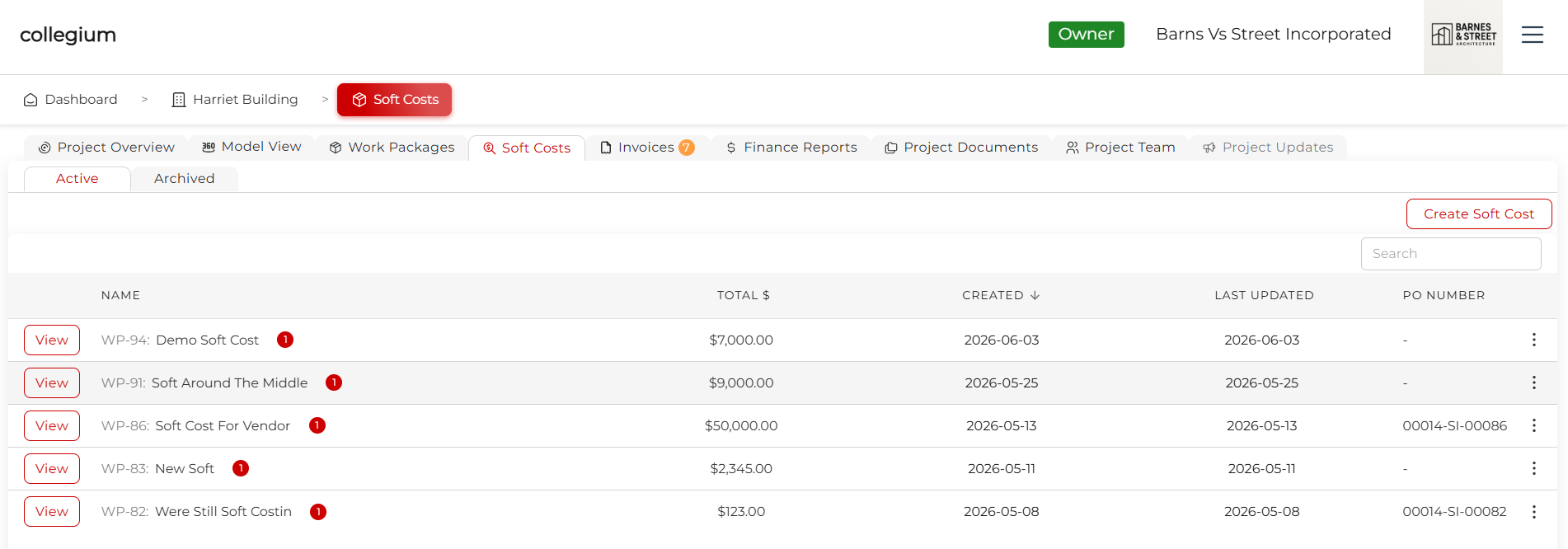
In the project tabs, click on Soft Costs
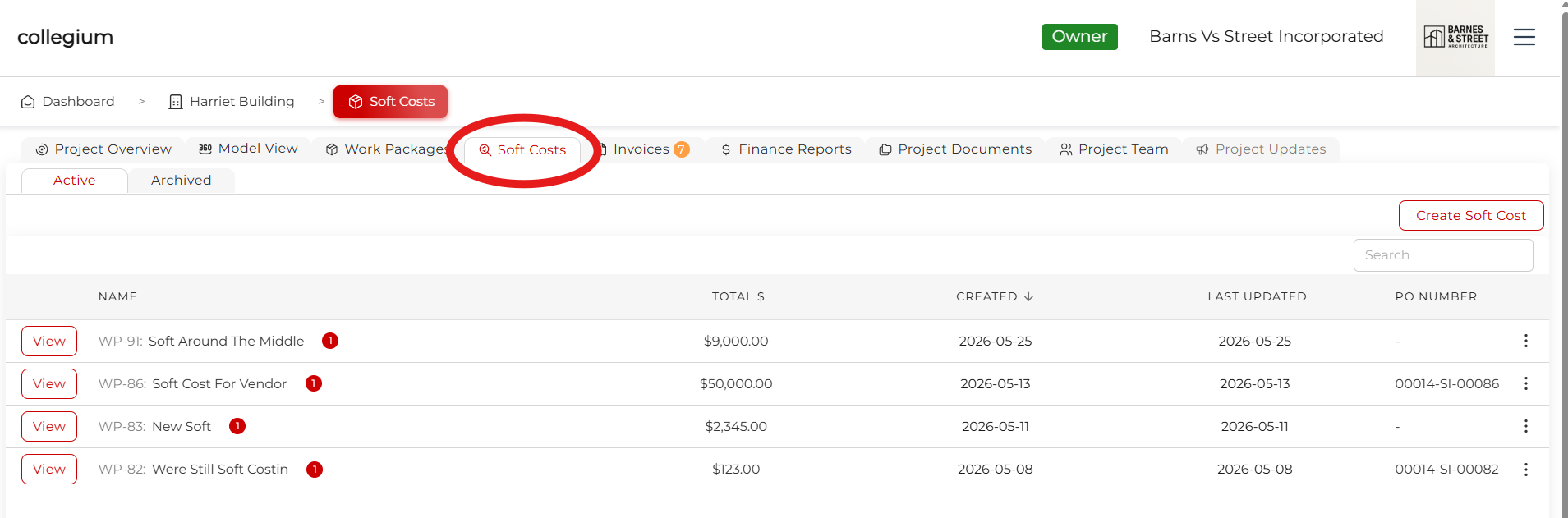
This takes you to the Soft Costs tabs. From here, click on Active or Archived to view, create, delete, and otherwise interact with soft costs for the project.
Step 2: Creating a Soft Cost
Click on the Create Soft Cost button to open up the soft cost window.
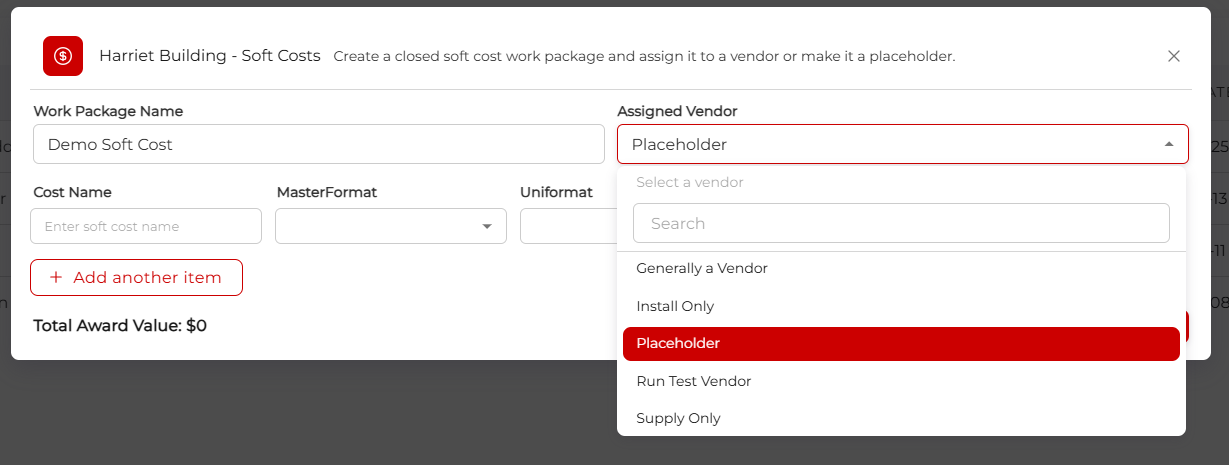
Type in an informative name, and select a vendor to assign the cost to. You can type the name you are looking for into the search bar if so desired. If these costs are just for budgeting purposes, simply select Placeholder and the costs you enter will still be reflected in the Financial Reporting tabs.
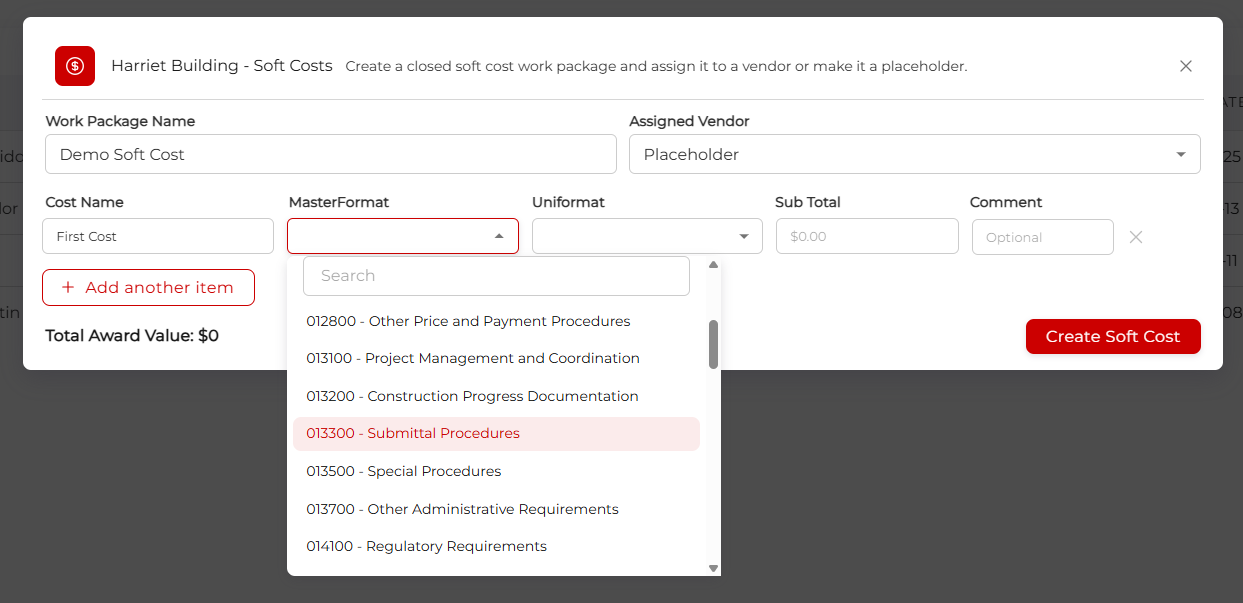
Below this you can enter one or more individual items to be assigned to the vendor. Enter a meaningful name, then select either the correct MasterFormat or Uniformat code. You can also type into the search bar to find something specific. The two codes are tied together, so whatever you select first restricts the options available in the other, preventing impossible combinations.
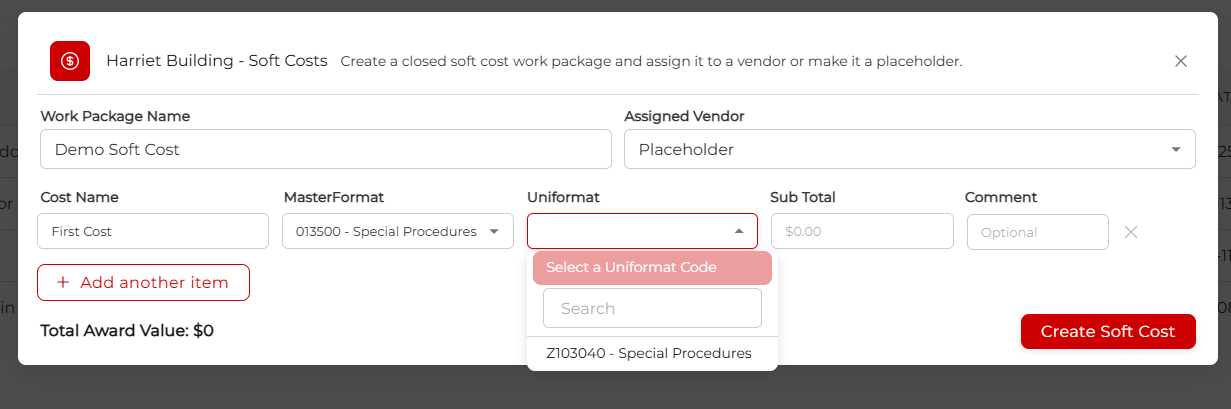
Enter the actual cost value, and an optional comment. If required, click Add another item to add another line that you can fill in.
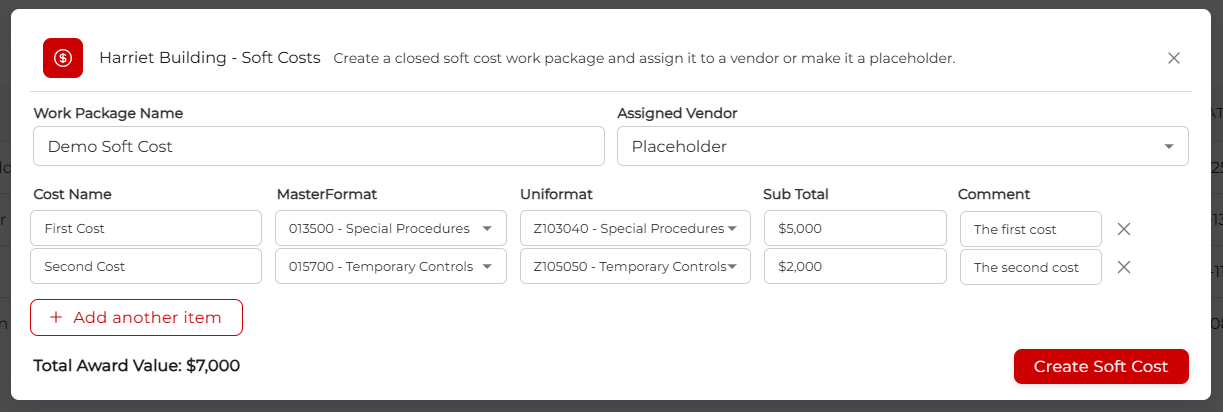
If you want to remove a row, simply click on the adjacent x. When you are happy, click Create Soft Cost. The whole thing is now listed in the Active soft costs table.
Step 3: Actions You Can Take
From this table, you can click View to reopen the soft costs window allowing you to edit the specifics of any soft costs package. If required, clicking on the three dots on the right will allow you to archive the cost.
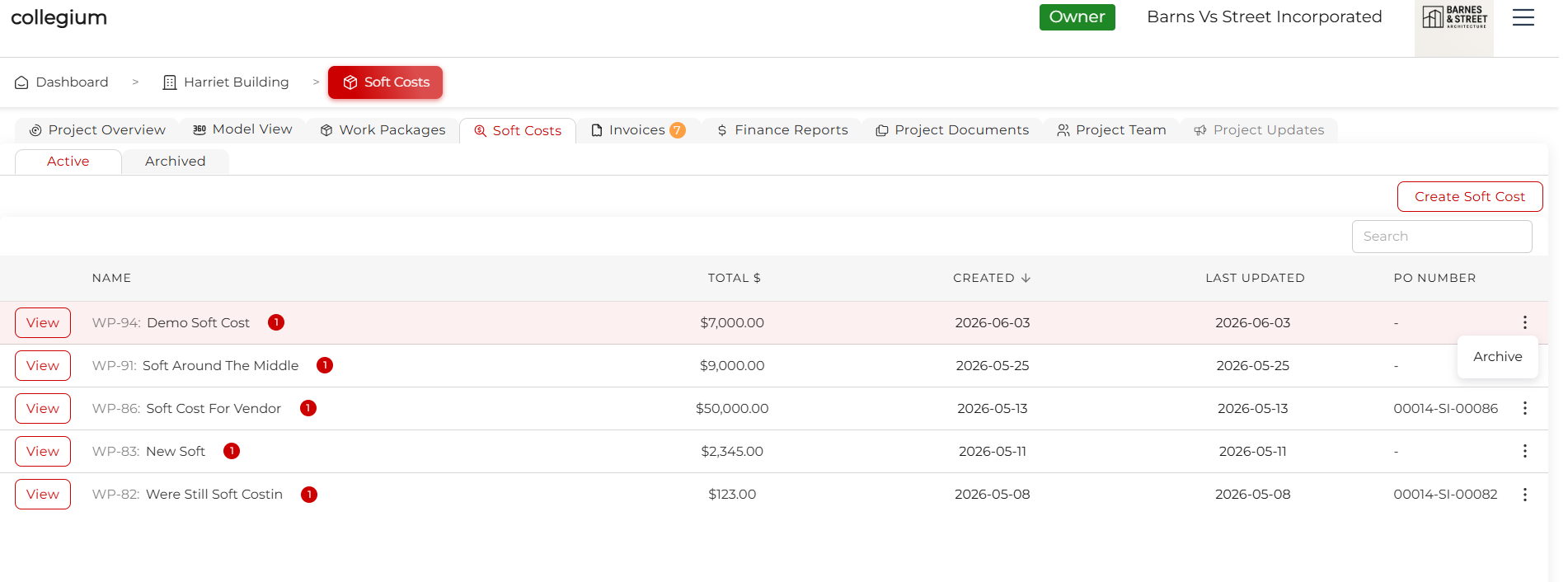
This will remove it from the active table. It will no longer be represented in Financial Reports.
Step 4: The Archived Tab
Clicking the Archived tab will navigate to the archived soft costs table.
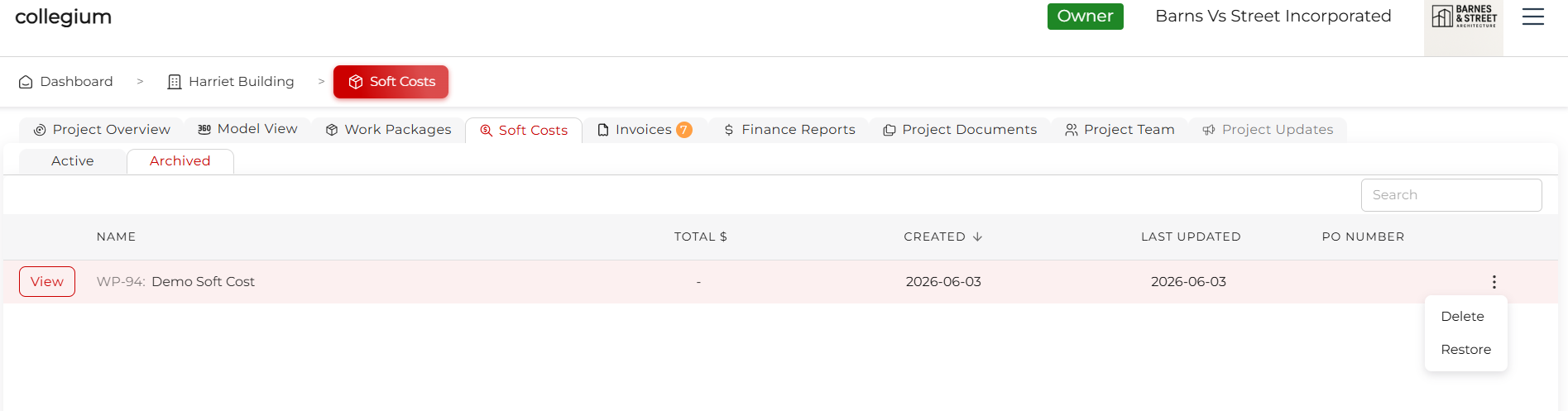
From here, you can choose to view as above. Via the three dot actions menu, you can also choose to Restore or Delete the cost.
Step 5: Invoicing
If you have assigned the cost to a vendor, the vendor will see this listed in their view, along with a PO Number, which they can use to submit invoices, either through the platform or by emailing to ap@collegiumbuilt.com. The invoices they submit will be visible on the Invoices tab. Once paid, they will be reflected in Financial Reports. Unpaid invoices are not totalled in Financial Reports.