Viewing and Evaluating Bids
Once a work package has received one or more bids, the owner can view, evaluate, award, and send contracts for these bids in the work package Bid Balancing tab.
Step 1: Navigate to the Bid Balancing tab
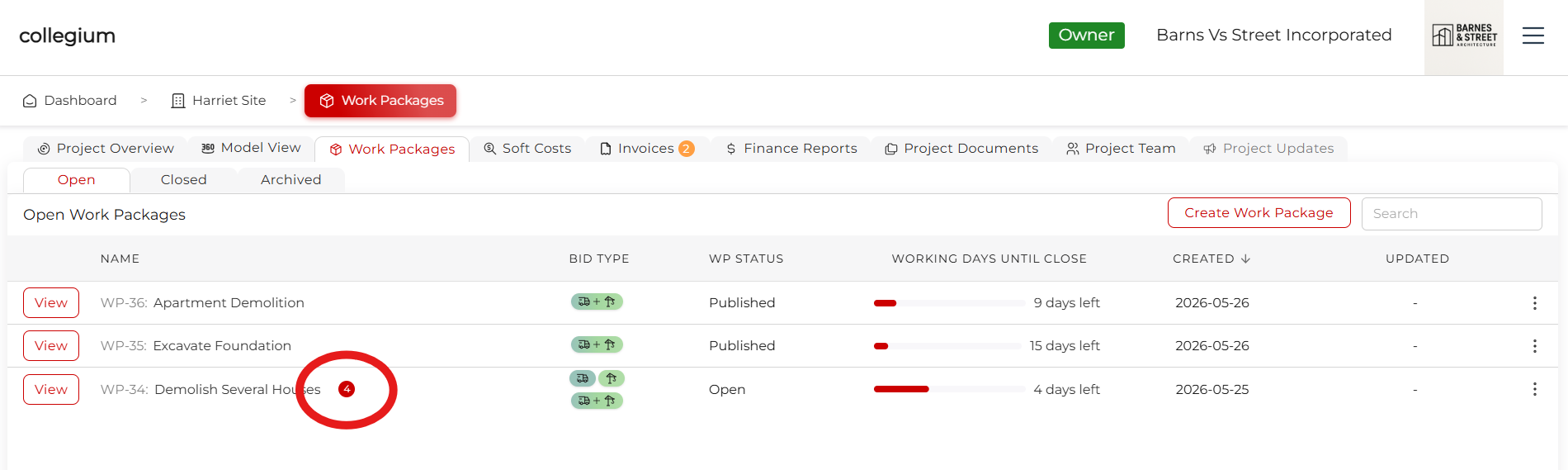
In the work package tables (open or closed) you can see if the work package has received a bid by a number next to the title. In the example, "Demolish Several Houses" has received 4 bids. Click View to enter the work package.
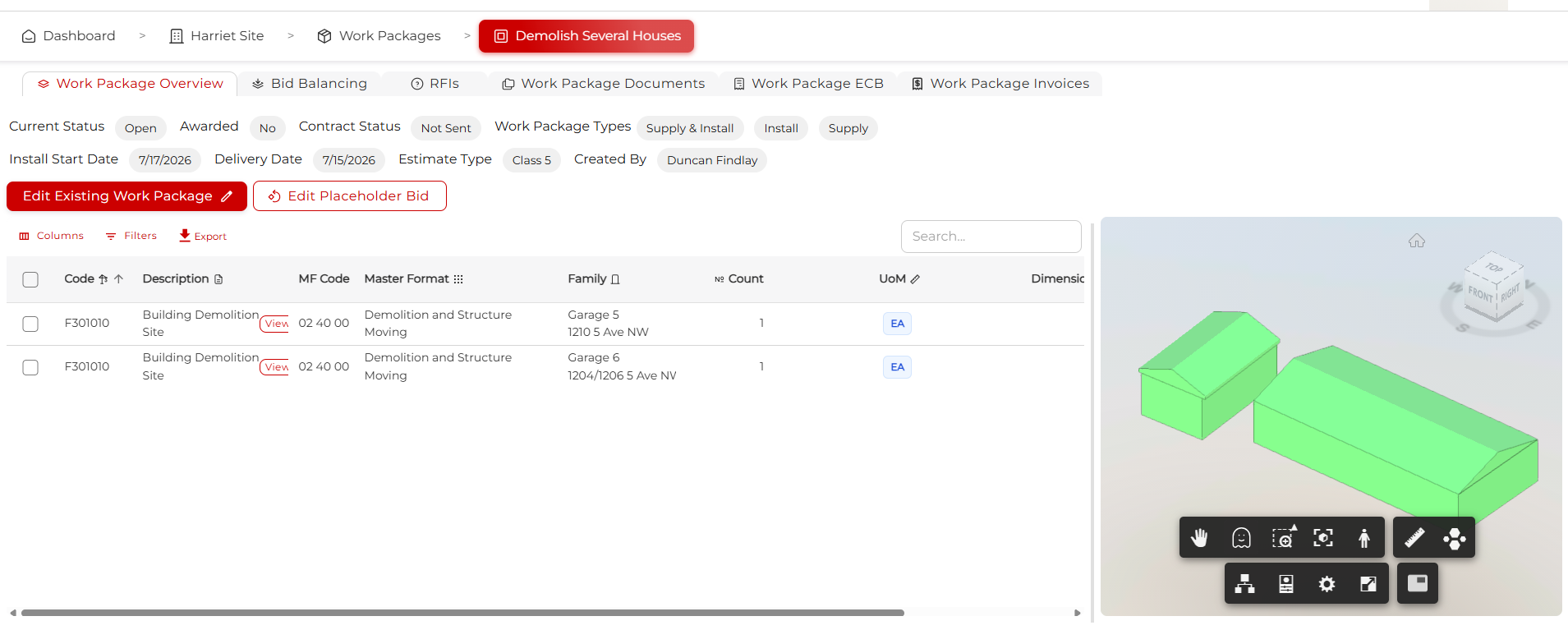
This takes you to the work package overview page. From here, click on Bid Balancing.
Step 2: The Bid Balancing table
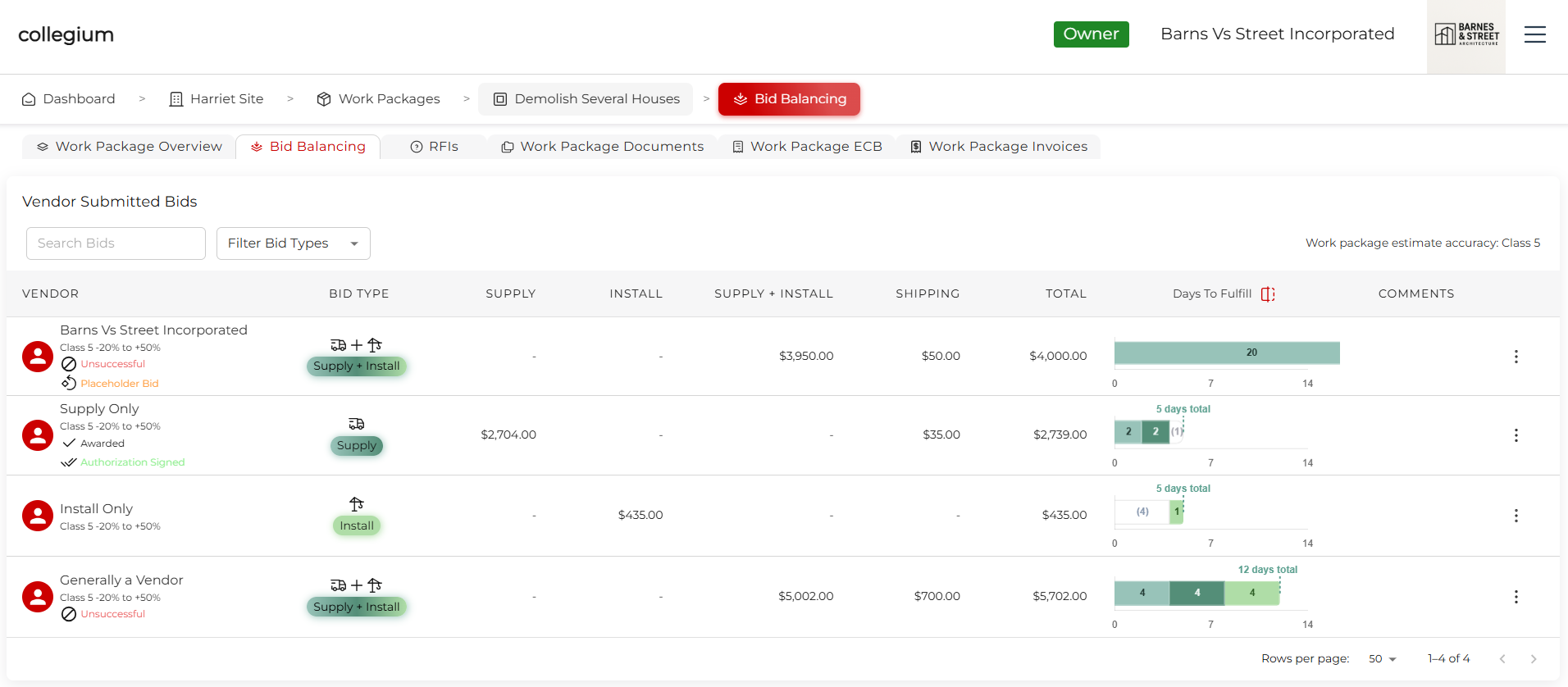
The Bid Balancing table shows all the bids currently received for the work package. You can search the bids using the search field, or filter the bids by Bid Type using the filter dropdown.
In the table, you can see:
- Vendor: The name of the vendor, whether it is a placeholder bid, whether it is used for pricing, and the award status (Awarded, signed, unsuccessful...).
- Bid Type: Whether the vendor is proposing to Supply, Install, or Supply + Install.
- Financials: Fees for Supply, Install, Supply + Install, and Shipping, and the Total.
- Timeline: Amount of time proposed by the vendor for the execution of their bid.
- Comments: If the vendor has added a comment to the bid, it is reviewable here.
Step 3: Actions You Can Take
Clicking on the 3 dots on the right opens the actions menu. Here you can:
- View Bid: Open up the bid the vendor submitted so you can review the details.
- Use For Pricing: This treats the bid as if it has been awarded, so you can see it affects the financial reports. This helps you build an accurate budget for the project. You can only have one supply bid used for pricing, and one install bid used for pricing, or one supply + install bid. If you use a second bid for pricing, it will stop using the first bid.
- Stop Using For Pricing: No longer use the bid for pricing. It will no longer appear in the financial reports.
- Award: If the work package has closed, you can select Award to reject all other relevant bids (you can award only one Supply bid and one Install bid, or one Supply + Install bid). This sends an email to the vendor congratulating them on their award of this work package. It also sends polite rejection emails to the other, unsuccessful vendors. This is also reflected on the vendor side when they log into their account.
- Rescind Award: Rescind the award. This is disabled if a work authorization has been signed.
- Send Work Authorization: Generates a standard contract and sends it to the vendor via DocuSign (a secure, industry-leading eSigning platform). Once it has been signed, you can review this document on the Work Package Documents tab.
When you use a bid for pricing, award it, send a work authorization, or receive a signed work authorization, the vendor column updates to reflect the new status.