Financial Reports
As Collegium is a data-forward platform, the generation of financial reports has been automated. Project owners can instantly retrieve up-to-date reports on how the project is progressing, or select a specific period of time. Let's explore.
In the project tabs, click on Financial Reports. The sidebar can be collapsed and expanded again if you want a wider view. This applies to all the finance tables.
The Elemental Cost Breakdown (ECB) UniFormat
The default report is the ECB UniFormat.
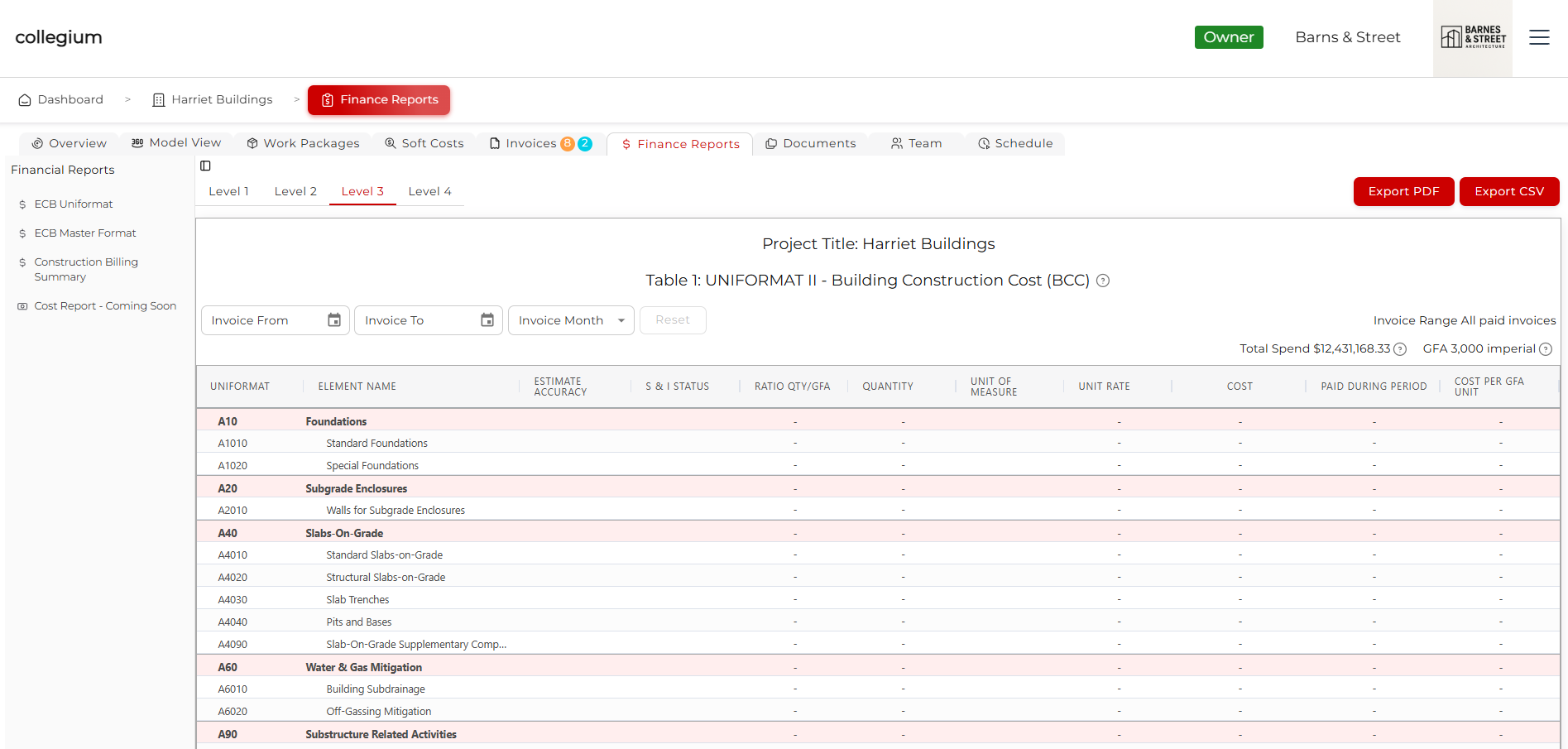
The ECB totals up budgeted spending and actual spending by UniFormat code. Every model element in a work package has a UniFormat code, so we can tally up spending in this way. It recalculates in real time as new work packages are created, and invoices are paid. There are several tabs within the ECB that let you select the level that the data is presented at.
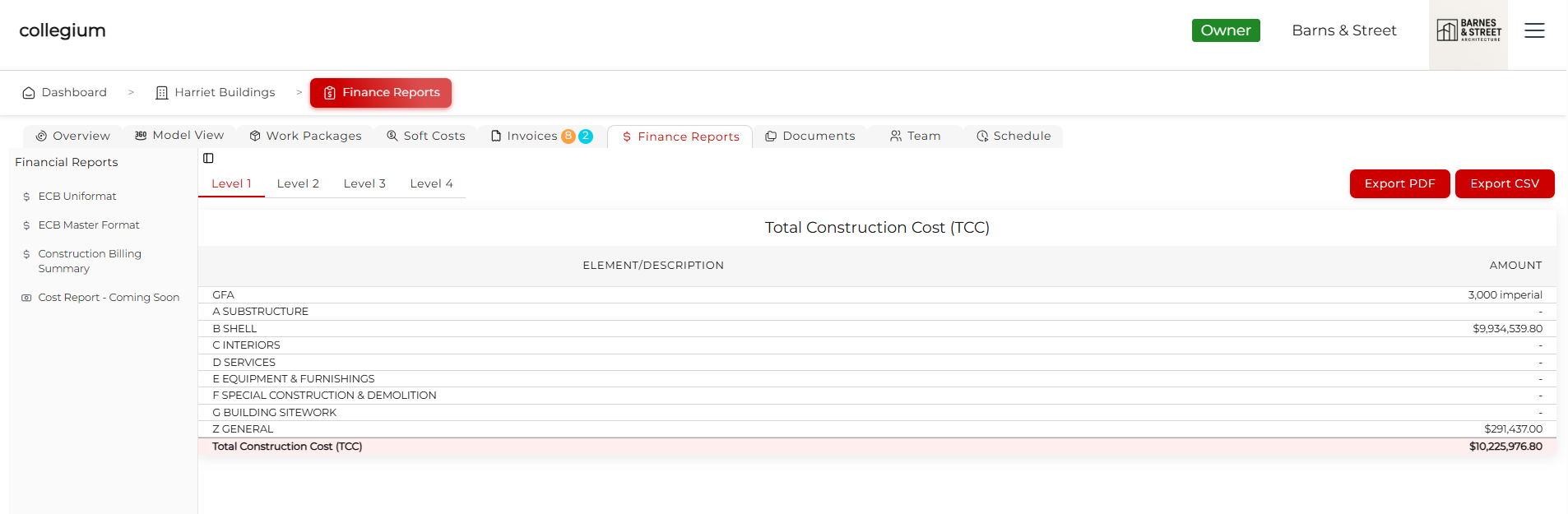
Level 1 is filtered the most coarsely, by A, B, C, D, E, F, G, and Z level.
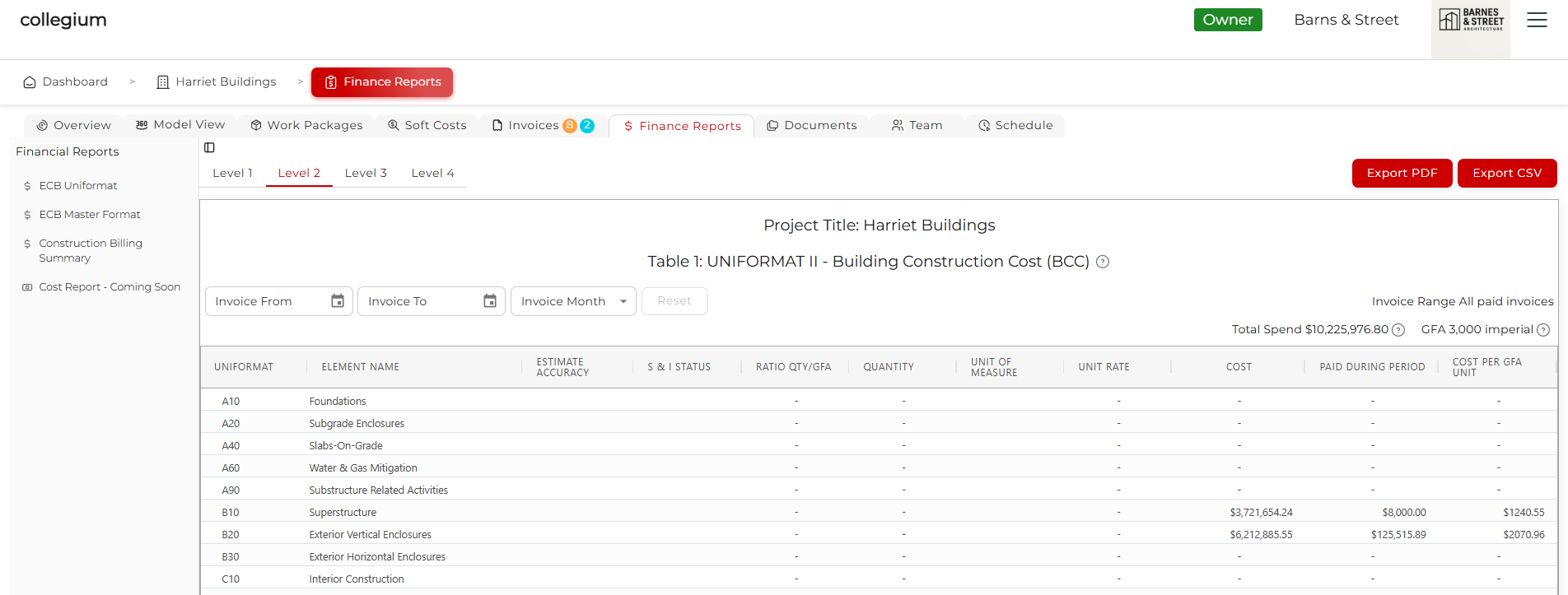
Level 2 is filtered at the A12 level.
The default is Level 3 which rolls the costs up to the A1234 level.
Level 4 is filtered to the A123456 level, including the most detail. It's also very long.
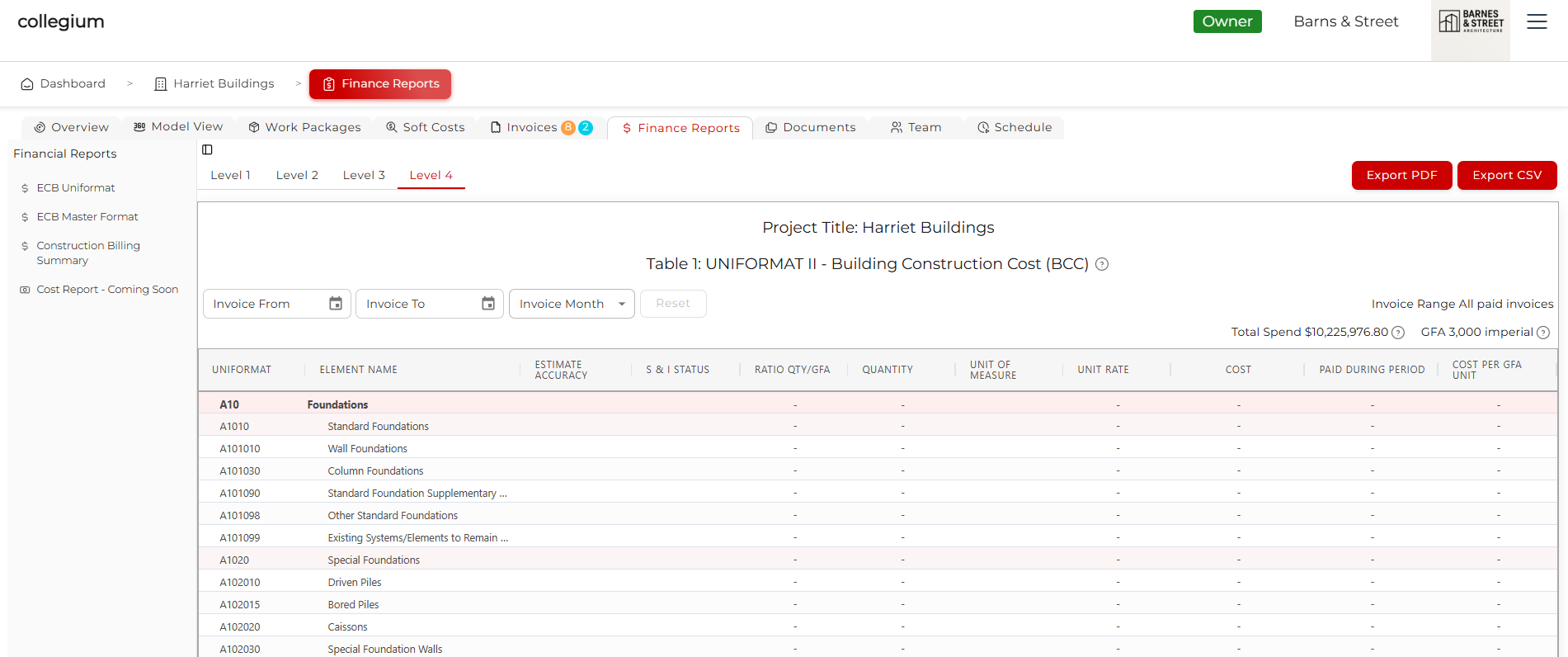
On the Level 2, Level 3, and Level 4 tables, you can filter the date range for the Cost and Paid During Period columns in the table either by selecting a month from the dropdown, or using the two date pickers to select a date range. You can export a PDF of this table, or a comma separated values (CSV) file, by clicking the buttons on the top right.
The Elemental Cost Breakdown (ECB) MasterFormat
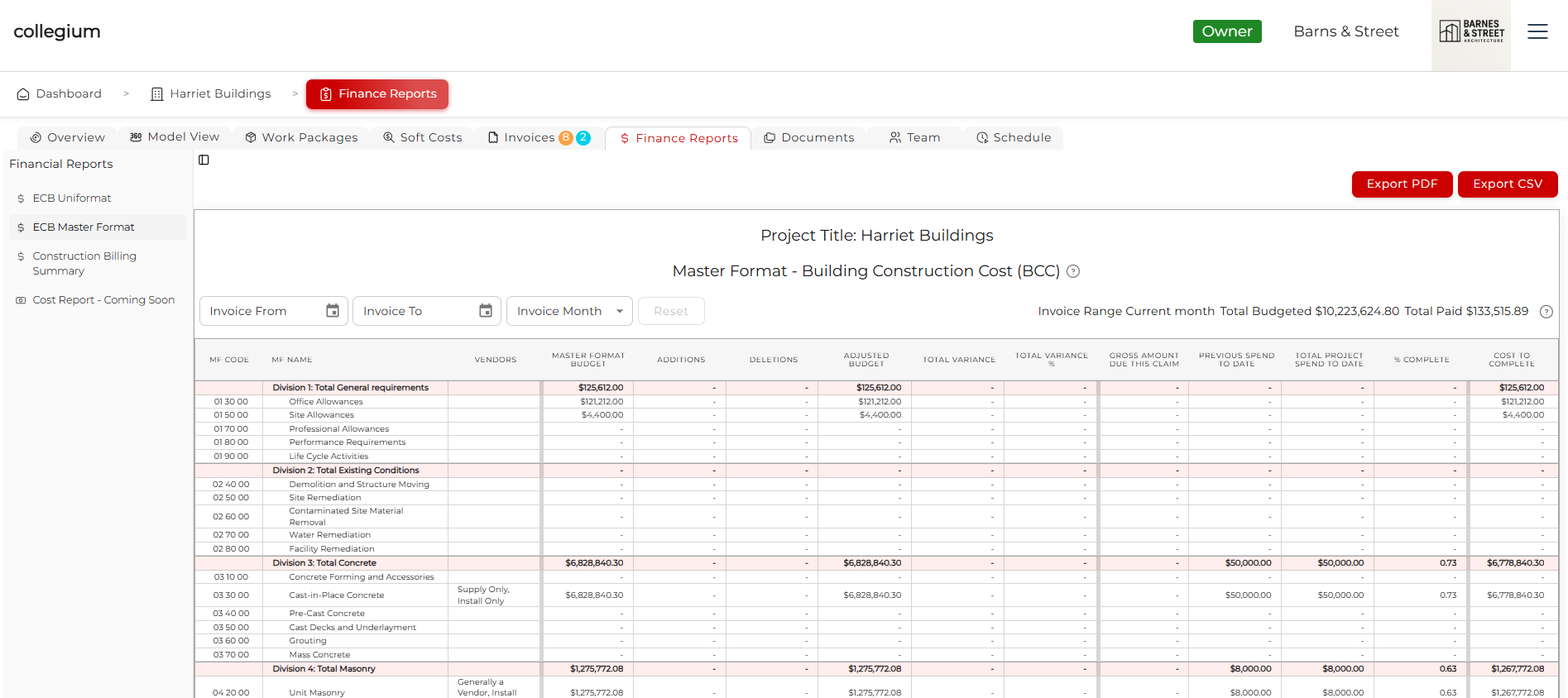
The next report is the ECB MasterFormat. This is a similar format to the ECB, except rolled up by MasterFormat code. As with UniFormat code, every model element put into a work package also has a MasterFormat code. So this table simply tallies up spending per MasterFormat code group.
As with the ECB UniFormat tables, you can filter the Gross Amount Due This Claim, Previous Spend to Date, and Total Project Spend To Date columns by changing the dates from the selectors at the top. Either select a month from the dropdown, or pick a start and end date from the date pickers. The table will dynamically update.
This table is also calculated in real time, so as new work packages are created, bids are used for pricing, or invoices are paid, the table updates. As with the previous ECB UniFormat, you can export the table as a PDF or CSV file by clicking on the button at the top right.
What is different about the ECB MasterFormat table is that it includes Additions and Deletions. These are extracted from invoices, and if the invoice is approved and paid, these Additions and Deletions are tallied up with the other costs.
Construction Billing Summary
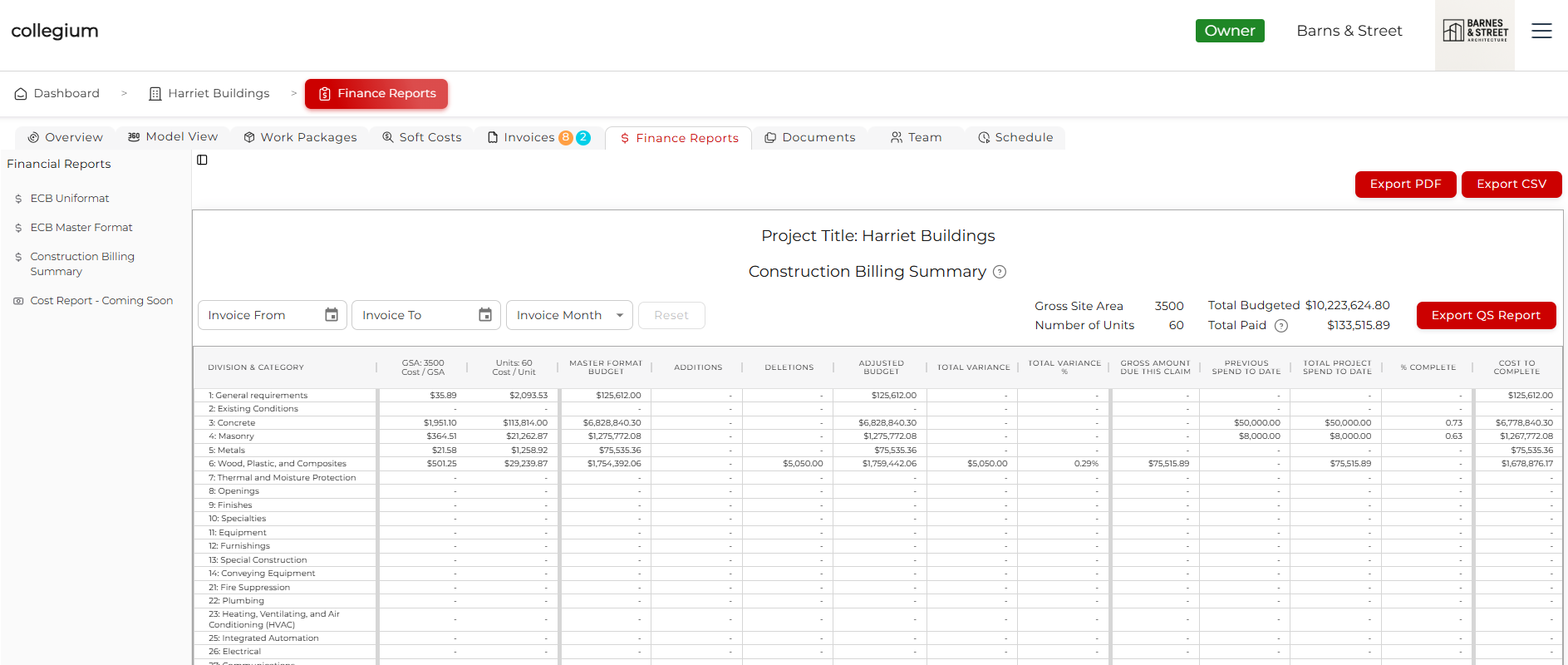
The next report is the Construction Billing Summary. Here the costs and current invoicing are totalled up by MasterFormat division. It is intended as a summary, but it also has the Quantity Surveyor Export function.
As above, the Gross Amount Due This Claim, Previous Spend to Date, and Total Project Spend to Date columns can be filtered by selecting a month or entering a custom date range. You can also export the table as a PDF or CSV file using the buttons at the top right.
The Construction Billing Summary also includes the Export QS Report button. Built for quantity surveyors, this function assembles a report for the selected date range. The report includes the Construction Billing Summary, the ECB MasterFormat, and every invoice received during the period.
Each invoice is accompanied by a cover page summarizing the invoice, data from its associated work package and bid, and the results of the invoice validation checks. The original invoice is also included, giving the quantity surveyor the information needed to review the claim and verify the invoiced work.